How to print your FamilySearch family tree
FamilySearch Family Tree is one shared tree for the whole world, so getting your part of it onto paper takes an extra step. FamilySearch prints a few charts on its own. For anything more, download your ancestors as a GEDCOM file through a partner program, then print that file here as a chart at any size.
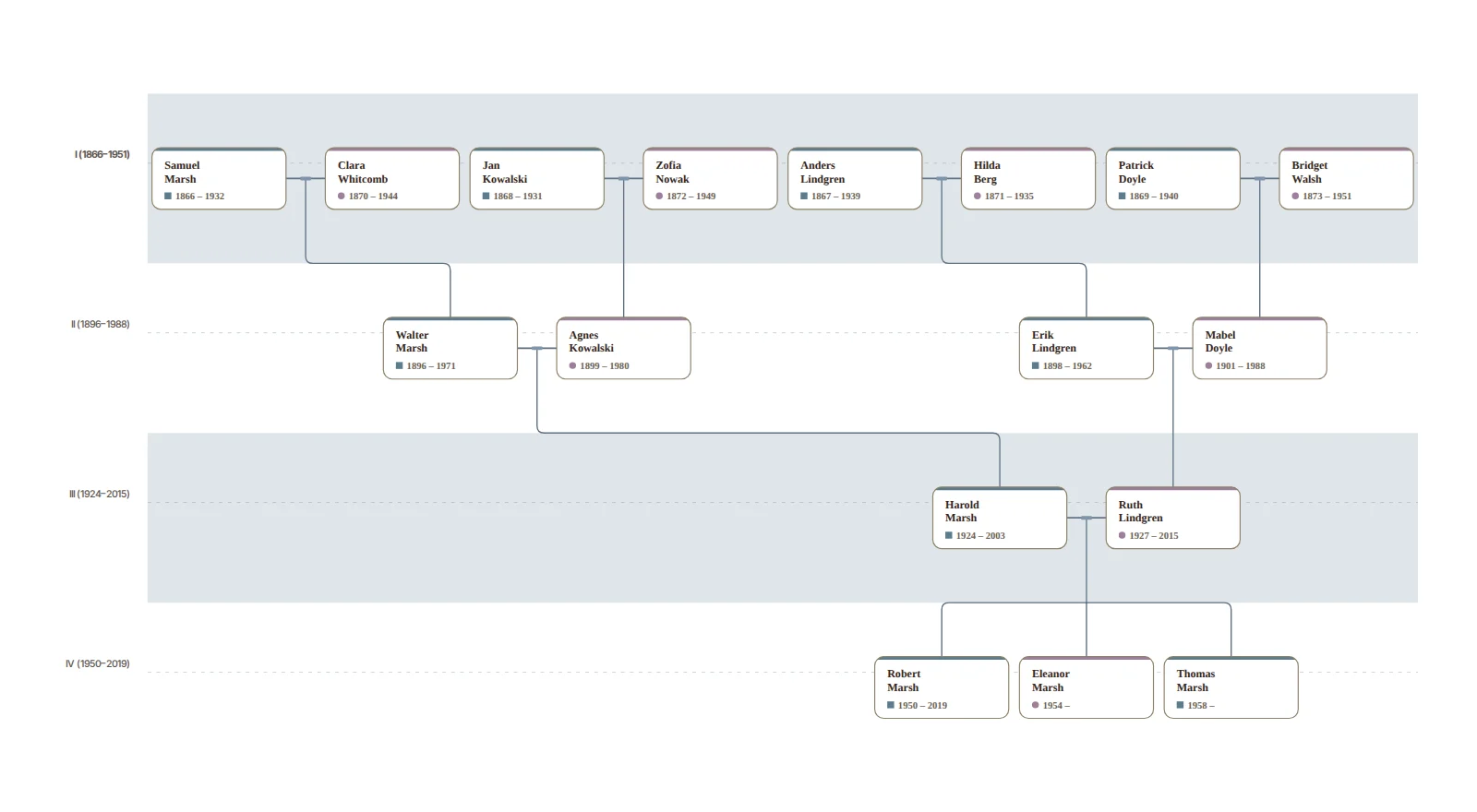
What FamilySearch prints on its own
FamilySearch can save a few charts of your own line as PDFs: a seven-generation fan chart, a five-generation portrait chart and a four-generation pedigree chart. If one of those is what you want, print it straight from FamilySearch; it is free and it is the quickest route.
It does not offer a different layout, a bigger family on one sheet, descendants as well as ancestors, or a size beyond what fits your printer. For those you need the people in a file you can take elsewhere.
Why there is no "Export GEDCOM" button
FamilySearch's help centre says it does not currently have a feature for downloading information from the shared Family Tree. Because the tree is shared, there is no single file that is "yours" to export. FamilySearch instead points to partner programs, listed in its Solutions Gallery, that can sign in to Family Tree, copy the people you choose to your computer, and save them as a GEDCOM file.
Step 1: get a GEDCOM out through a partner program
Any program from the Solutions Gallery that both syncs with Family Tree and exports GEDCOM will do. Two common ones:
- Ancestral Quest Basics is free. Its feature comparison lists syncing with FamilySearch Family Tree and creating GEDCOM files in the free edition.
- RootsMagic and Family Tree Maker are paid desktop programs that also connect to FamilySearch Family Tree. Check each one's site for which edition includes it.
The steps are the same in outline whichever you pick:
- Install the program and create a new, empty file.
- Sign in with your FamilySearch account from inside the program.
- Download yourself and the generations you want from Family Tree. Most programs let you choose how many generations of ancestors, descendants or both to bring down.
- Use the program's export command and choose GEDCOM. You get a
.gedfile.
The download is a copy. Nothing changes on FamilySearch, and the copy does not update itself when the shared tree does, so repeat these steps when you want a print with newer research.
Step 2: import it and choose what to print
- Create a free account and create a tree, or start as a guest to try it with up to 50 people (a larger file needs a free account).
- Click Import on the rail, choose Replace entire tree if the tree is empty, and drop the
.gedfile in. - Click Preview to see how many people, relationships and events were found, then Apply import.
The tree is drawn with the generations lined up and couples side by side. Then choose the chart:
- The family tree, top to bottom or left to right, with brothers, sisters and cousins included.
- A numbered pedigree chart: direct ancestors only. Turn on Pedigree in Look; it works with either tree direction.
- A fan chart of ancestors, of descendants, or both as an hourglass.
- A timeline of everyone's lifespans.
Step 3: export and print
Open Export on the rail and choose A print. Answer who the print shows, which chart and what paper size, then download the PDF on the last step. It is vector, so the same file prints sharp on a letter sheet or a 36-inch poster. For a poster bigger than a home printer takes, the paper step asks where you will print it: a print shop on one sheet, or Letter or A4 sheets taped together. Two or three generations of a full family read well on Letter or A4; a whole tree wants a poster. Print your family tree has every size and option, and the Ancestry guide explains how to fit a big tree onto fewer pages.
Frequently asked questions
Is it free? Importing and drawing the tree is free, and a guest can download a watermarked PNG at screen size. A free account can also print a chart of up to 5 generations from one person on Letter or A4, as a PDF or PNG, with a small "Made with Draw My Tree" credit line instead of the watermark. Larger charts, a print-ready SVG, poster sizes, full-resolution images without the watermark, the whole tree and the printed reports come with a one-time Keepsake for that tree, or with the Family Plan for every tree. Prices are on the pricing page.
Are photos included? No. A GEDCOM file carries names, dates, places and relationships; photos stay with FamilySearch and the program that downloaded them. Add portraits to people here afterwards and they print on the cards. One portrait per person comes with every account.
Can I send my changes back to FamilySearch? Not from Draw My Tree. Corrections to the shared tree are made on FamilySearch, or through a partner program that syncs.
Are living people included? FamilySearch keeps living people private to the person who added them, so what you can download depends on the program and your account. Review the print before handing it out; Leave out living people in the Export panel leaves them off.
What to read next
- Import a GEDCOM from Ancestry, MyHeritage or another app
- Print a Family Tree Maker or RootsMagic tree
- Print a family group sheet
Last updated October 11, 2026 by Prescott Bros LLC, the makers of Draw My Tree.