Print your family tree as a PDF, SVG, or PNG
To print your tree, open Export on the rail and choose A print, which asks four questions and hands you the file; or open All export options at the foot of the question to pick a format and a size yourself. The preview shows the page exactly as it will come out; click it to see it full screen. Files download to your computer; Draw My Tree doesn't keep a copy on its servers.
If you're building as a guest without an account, export is limited to a watermarked PNG at screen size, up to 2,048 pixels on the long side, which you can also copy or share. A free account adds a complete JSON backup and saved setups. Paper, poster and photo-book sizes show in All export options for everyone, named with the Keepsake, so you can see the print before you buy it. Printing at any paper or poster size, the printed reports, the print-ready PDF, SVG, JPEG, full-resolution images, a transparent background and the option to turn the watermark off come with the Family Plan, or with a one-time Keepsake bought for a single tree from its Export panel, which unlocks all of it for that tree for as long as it exists.
Every chart prints the same way. With Fan chart, Couple's chart, Timeline or Map chosen under Chart in the Look panel, the export draws that chart rather than the tree, at the size and in the look you pick here.
Make a print
Make a print asks four questions, one at a time, and hands you the file. Printing comes with a Keepsake or the Family Plan; without one, it asks three, skips the paper size, and ends on the watermarked picture you can download. Open it from the tree's ⋮ menu, the search box (type "print"), or A print in the Export panel, which asks What are you making? when it opens. Every route opens the same flow in the Export panel.
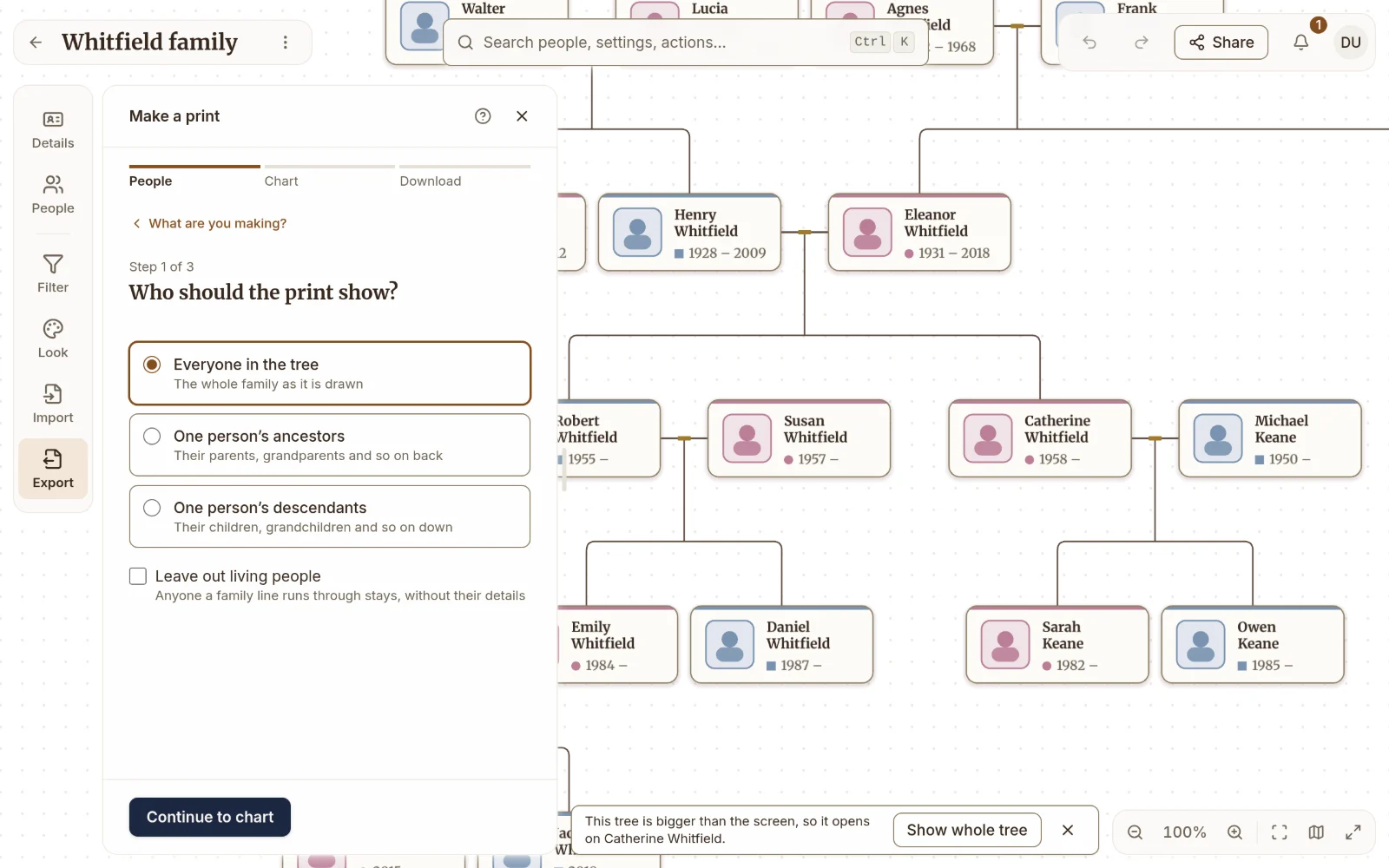
- Who should the print show? Everyone in the tree, one person's ancestors, or one person's descendants. Choosing someone narrows the tree beside the panel at once, the same as a focus in Filter. If a pedigree or another focus is already on the tree, the flow opens with it chosen (Keep the current pedigree, Keep the current focus, or the matching ancestors or descendants answer), so opening the flow changes nothing until you choose otherwise. You can also leave out living people here.
- Which chart should it be? A family tree running down or across the page, a fan chart, a couple's chart (offered once two people in the tree are partners), a timeline, or a migration map titled "Where we came from", each in its own look. Colors and what each card says stay in Look.
- What size will you print it? The paper and poster sizes, smallest first, each with the size the names would print at in that file. Nothing is picked for you the first time (after that, your last paper size is), and Continue says so if you press it before choosing. Under 8 pt names are hard to read, so the step says so and names the smallest size that keeps them readable; if even the largest poster is too small, it says that too, and suggests printing one line instead (for a fan, fewer generations). The people count is the chart's own: a fan counts the people in its rings. A poster bigger than a sheet asks whether it goes to a print shop on one sheet or to a home printer on Letter or A4 sheets you tape together. Each home choice says how many sheets the poster takes, across and down. Once you choose home sheets, every paper in the list shows its count beside its name size, so you can trade card size for pages: a smaller paper prints the same tree with smaller cards on fewer sheets, and you can see where the names stop being readable before you print.
- Check your print and download it. Your answers, each with a Change link that brings you back here, the preview, and the download: a PDF, or a PNG for a photo lab at the resolution set in Export (300 or 150 dpi). As a guest or on a free account, this step shows the picture you can download, a watermarked PNG up to 2,048 pixels on the long side, with Download the watermarked picture beside the way to unlock printing: Unlock this tree for your own tree, or Create a free account as a guest.
To print how two people are related, open How are they related? and choose Print this: the flow opens on the line between them, titled with the answer (the relationship calculator).
Every answer is an ordinary setting, so Filter, Look and Export show the same choices afterwards, and the next print starts from them. On a plan or a Keepsake, the last step's Print shop extras add bleed and crop marks, a key to the chart and the years the tree spans. A second title line, an export look and the other formats are in All export options.
A picture to share
A picture to share in the Export panel asks where the picture is going (a message or an email, a social post, a slideshow or a TV, or a large screen), sizes it for that, and shows it before you download, copy or share it.
Which format to print from
- PDF: vector, prints sharp at any size, and goes into any document or email. Best for printable family trees, especially large ones. If you're printing a wall-sized tree at a print shop, this is the format to send them.
- SVG: a vector image. Scales to any size without losing sharpness. Best when you're not sure how big a recipient will print it, or when a printer or design tool asks for it. Most browsers can open SVGs directly.
- PNG: a regular image. Good for posting on social media or sending in a chat. Bitmap, so it gets blurry if scaled up beyond its export size.
- JPEG: like PNG but smaller files and slightly lower quality. Use when file size matters.
Sizes
Size in the Export panel's All export options sets the page the tree is drawn on:
- Original size: the tree at its own size, with nothing around it. A PDF or SVG comes out at one point per pixel; for a PNG or JPEG, Pixel density sets how many pixels each one gets (2× by default).
- Paper: Letter, Legal, Tabloid, A4, A3, A2. Two or three generations read well on Letter or A4; four fit on Tabloid or A3.
- Poster: 18 × 24, 24 × 36 and 36 × 48 in, the sizes print shops and online poster printers stock. Send them the PDF as it is.
- Photo book: 8 × 8, 8 × 10, 10 × 10 and 12 × 12 in. Pick the ¾ in margin so nothing sits in the binding.
- Screen: HD (1920 × 1080), 4K (3840 × 2160) and a 1080 × 1080 square, in exact pixels, for a slideshow, a desktop background or a post.
- Custom size: any width and height, in inches, centimetres or pixels.
On any page the tree is scaled to fit and centred. Orientation is Auto by default, which turns the page to match the tree's shape; Tall and Wide force it. Margin leaves a border of none, ¼, ½ or ¾ in, so a home printer does not clip the edge and a photo book's binding does not swallow it. A PNG or JPEG on a paper or poster size is drawn at 300 dpi, or 150 dpi for a quicker draft. A very large image can be more than the browser can draw; the panel says so and what size you will get, and the PDF has no such limit.
A poster on a home printer. For a PDF on a paper, poster or custom size, Print on can split the page across Letter sheets or A4 sheets. The panel says how many it takes, and while one of those is chosen, every paper in the Page list shows its own count beside its name, the same count Make a print shows, so you can see how many sheets a smaller or larger size would take before you switch. Each sheet is labeled with its row and column, has ticks at its corners, and carries a dashed line ½ in in from its right and bottom edges (¼ in inside the printed area) where the next sheet's picture starts: trim there and tape it over its neighbor.
For a print shop. On one sheet, Bleed and crop marks runs the background ⅛ in past the edge and draws trim marks in a white border around it, which is what most print shops ask for. The file is in RGB color; shops convert it to CMYK, and very saturated blues and greens can come out a little duller.
Fonts. PDFs carry the tree's own typefaces, so names print the way they look on screen. The display and slab faces print in the serif.
Check the names will be readable. Under the preview the panel says what size the names print at. Below 8 pt it warns you and names the smallest paper or poster that would make them readable, with a button to switch to it. To get more onto one sheet instead, hide photos or dates on the cards so they shrink, set Fit names to Fit most names under Look so a few long names stop widening every card, collapse the branches you are not printing, or use a focus filter to show one line. The size you pick is remembered on this device.
Content: whole tree or what's on screen
- What's on screen: exports only what's currently visible on the canvas. Use this when you've zoomed and panned to a specific branch and want only that part.
- Whole tree: exports everything, regardless of zoom and pan. Use this for the complete tree.
Title it puts the tree's name above the tree as a heading, in a serif or sans-serif face at three sizes. The heading sits in the top-left corner on the page margin, with the key and the watermark on the same margin at the bottom, and it grows with the paper: 24 pt on Letter or A4 and about 69 pt on a 24 × 36 in poster at the middle size. A long name runs onto a second line and is cut short after that. Under it you can add a second line of your own, and the years the people in the export span (earliest to latest recorded date, so a filtered export states its own range). Add a key to the chart appears when the view uses adoptive, foster, step or guardian lines, or engaged, partnered, separated or divorced couples, and lists only those under the tree. On a numbered pedigree it also says who 1 is, how the numbers work and what a filled number means, and it starts ticked; with Ancestor numbers off in Look the pedigree has no numbers to explain. Add a QR code to the public link appears on a paper or poster size while the tree's public link is on (the link of the version on screen). It puts a code in the bottom-left corner that a phone camera opens the link from, 25 mm across on Letter, A4, Tabloid and A3 and 40 mm on the 18 × 24 and 24 × 36 in posters. It is printed in the look's own colours, the lightest of its inks and line colours that a phone still reads, straight onto the page, with rounded corners when the cards have them; on a mid-tone, dark or transparent background it sits on a light square, in the card colour when the cards are light, so a phone can still read it. If a phone could not read it as it comes out (a seam between taped sheets running through it, squares under 0.5 mm on paper or 1 mm on a poster, or under 2 pixels in an image), the panel and Make a print say so, with a button that fixes it or one that turns the code off. It stops working if you rotate the link or turn it off. Transparent background (PNG and SVG only) leaves out the canvas color and pattern, so the tree sits on whatever you place it over.
Copy puts the PNG on your clipboard, at the size and with the watermark you chose, ready to paste into a message or document. Share (on phones and other devices with a share sheet) hands the PNG, JPEG or PDF straight to another app. Print opens your browser's print dialog with the page already set to the size you chose.
A large tree or a poster split across many sheets takes a while. The panel shows what it is doing, with a progress bar when it can count, and Cancel stops it.
Saved setups. Once the panel is how you like it, Save setup keeps every choice (format, size, content, look, title and key settings) under a name, such as "Poster for Grandma". Pick it from the list to bring it all back, on this tree or any other. The second line's text is not saved, since it belongs to one tree. Setups are kept on this device.
Look: current, or any preset
The Look dropdown draws the export in another look without touching the tree on screen. Leave it on Current look to export exactly what you see, or pick any built-in or saved preset to export the same tree in that style; the live preview updates with it, so you can try a few before committing.
Almost everything the preset carries comes through: colors, fonts, name weight, name format, card shape, borders, accents, lines, the couple and family markers, the generation bands, and the canvas background and pattern.
Fifteen settings stay with the tree on screen instead: card layout, card width, long names, hide photo, card size, date format, hide birth date, hide death date, keep full names, show birth and death places, mark deaths before 18, the gender shape mark, family markers, a fan's Shade cells and Family colors. The first thirteen decide the shape of the card box, or what sits between the cards, that everything was laid out against (the date and place settings and the gender mark by changing how many date rows a card has, and the full names by how many name rows), and a themed export reuses the positions from the canvas, so taking them from a preset would draw a re-planned card into a box the wrong shape for it. Shade cells and Family colors say what the colors mean, so a fan shaded by birthplace keeps its shading and its key in any look (a black-and-white look tells the places apart with greys and hatching), and a tree in family colors keeps its lines, each recolored in that look's own colors. Change those on the tree itself if you want them in the export.
Watermarks
Toggle Include Draw My Tree watermark on to add a small Draw My Tree brand mark to PNG, JPEG, SVG, and PDF exports. It sits in a corner and credits the tool when you share publicly. On the Family Plan, or on a tree with a Keepsake, the toggle is yours. Guest exports and a free account's pictures are watermarked either way, so the panel says so in place of the toggle.
Reports
A report in the Export panel prints three standard genealogy reports about the person you have selected, or anyone you choose there, and the family group sheets of the whole tree:
- Family group sheet: the person and each partner, with births, baptisms, deaths and burials, dates and places, each partner's parents, the marriage, and their children with their partners. A page per family; children whose other parent isn't recorded get their own.
- Every family in the tree: a family group sheet for every family, in one print job, a page each, oldest generation first from the tree's home person and then by surname. It opens on a cover page and an index of the families by surname, with each sheet numbered to match. You don't need to select anyone.
- Ancestors: everyone in their direct line, numbered the way genealogists number them. 1 is the person, a father is twice his child's number and a mother twice plus one, so 2 and 3 are the parents and 4 to 7 the grandparents. Someone who appears through two lines is written out once and pointed to from the other number. It goes back eight generations.
- Descendants: each family in turn, children in birth order with i, ii, iii, and a + before a child whose own family follows further on. It goes down six generations.
They open in your browser's print dialog, where Save as PDF makes a file of them instead. Printing a report comes with a Keepsake or the Family Plan, as printing a chart does; without one, each report is listed named with the Keepsake. With Leave out living people on they leave living people out, as the chart does.
Before you hand it out
A print can hold names, dates and stories about living people. Turn on Leave out living people (in Make a print's first step, or under Privacy in All export options) and they stay out, apart from anyone a family line runs through, who stays without their details. It is off unless you turn it on.
What to read next
- How to print your Ancestry family tree: the whole path from an Ancestry export to a poster.
- Convert a GEDCOM file to a printable PDF: the same export, starting from a
.gedfile. - Exporting your data: data formats and backups.
Last updated October 31, 2026 by Prescott Bros LLC, the makers of Draw My Tree.