Convert a GEDCOM file to a printable PDF
Draw My Tree converts a GEDCOM file to a printable PDF. Import the .ged file, and the tree is drawn with the generations aligned and the couples side by side. Export it as a vector PDF that prints sharp at any size, or as SVG or PNG if a printer wants those instead.
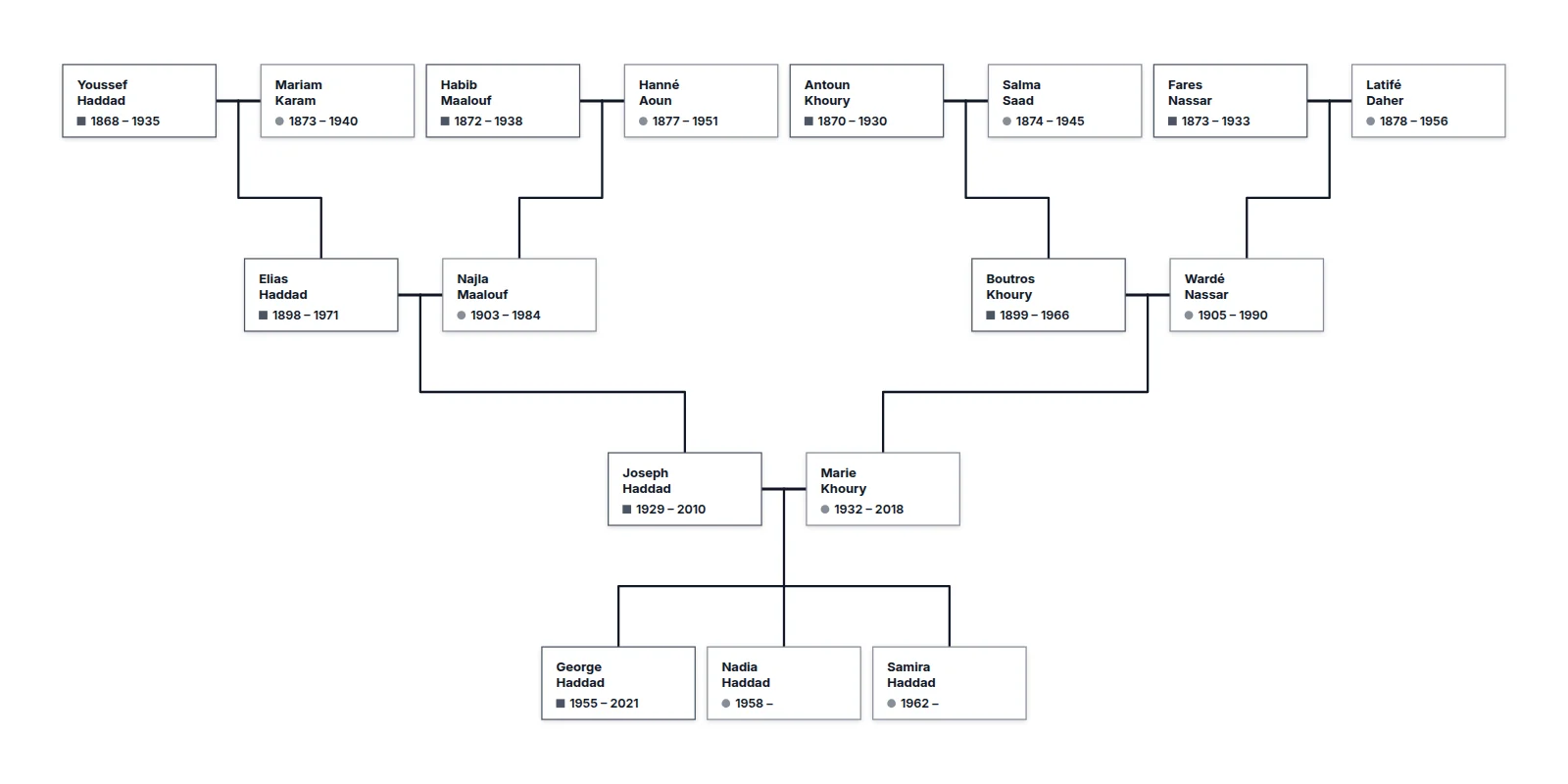
Create a free account and import your file, then open Export on the rail and choose A print. The PDF comes with a Keepsake or the Family Plan; a free account sees the print and downloads a watermarked picture of it at screen size. If you have not exported a GEDCOM before, Import a GEDCOM from Ancestry, MyHeritage or another app has the click paths, what the file contains, and what happens to it when you upload it.
What you get
- A vector PDF. Text stays text and lines stay lines, so the file has no fixed size and prints crisp on a letter sheet or a 48-inch poster. Drop it into an email, a document, or a print order.
- SVG if a printer or a design tool prefers it. Same vector quality, opens in any browser.
- PNG or JPEG for a chat, a slide, or a social post. Bitmap, so pick the export size for the use; scaling a small PNG up makes it blurry.
- A live preview before you commit, showing what the file will contain.
The PDF is a snapshot. To fix a mistake, correct the tree and export again.
Choosing a layout before you export
The PDF prints what the tree shows, so set that up first.
- Content. The whole tree, or only what is on the canvas. Zoom to a branch and choose What's on screen to print that branch alone.
- Size. Letter, A4, Tabloid, A3, a poster size, or a custom page; the tree is fitted and centred on it.
- Focus. Show one person's ancestors or descendants, or the line between two people, before exporting. On a large tree, this is what keeps the page readable.
- Look. Choose card shape, typeface, and colors, or pick any look under Look in the Export panel to draw the file in another look without touching the tree on screen.
- Cards. Hide photos or dates to make cards smaller and fit more on a page.
- Watermark. Off by default on a paid export; on if you want to credit the tool when sharing publicly.
Sizes and print-shop advice are in Print your family tree, and the Ancestry-specific path is in How to print your Ancestry family tree.
Also available: PNG, SVG, JSON, CSV
The same Export panel writes the other formats:
- GEDCOM to PNG or JPEG: an image of the drawn tree at the export size you choose.
- GEDCOM to SVG: the vector drawing, for printers and design tools.
- GEDCOM to JSON: Draw My Tree's own format, carrying stories, events and media, downloaded as a
.zipbackup with every photo you uploaded. Free on every account. - GEDCOM to CSV: one row per person with parent, child and partner IDs, for Excel, Google Sheets, or a script. Events and media do not come through.
- GEDCOM to GEDCOM: export again after fixing names and dates, and carry the corrections back to the app you came from.
Frequently asked questions
Is it free? Importing the GEDCOM and drawing the tree is free with a free account. JSON export is free, and so is a watermarked picture of the tree at screen size. Printing at any paper or poster size, the print-ready PDF, SVG, GEDCOM, CSV and full-resolution images come with a one-time Keepsake for that tree, or with the Family Plan for every tree; a guest tree exports a watermarked PNG for free. Prices are on the pricing page.
How large can the tree be? Files up to 25 MB import. We test with trees of up to about 3,000 people, which lay out in a few seconds and export to PDF. A tree that large opens on one person, since it is too wide to read whole on a screen, and wants a focus filter or a poster-sized sheet to be readable in print. A guest tree holds up to 50 people, a tree on a free account up to 500, a tree with a Keepsake up to 2,000, and a tree on the Family Plan up to 5,000. A file with more people than the tree holds still previews, and See it drawn shows the whole file before anything is saved; Unlock this tree then buys the Keepsake, and the file waits in your browser while you check out. A tree already over its limit keeps everyone; the limit only stops you adding more.
Will it print at poster size? Yes. The PDF is vector, so a print shop can output it at any width without loss. Ask for the width you want and send the file as is.
Does the PDF include photos? If the people in your tree have portraits, yes. A GEDCOM does not carry images, so add them after import if you want them on the print.
Convert your GEDCOM now, or try the layout as a guest with a few typed names first.
What to read next
- Open a GEDCOM file online: search and explore the file before you print.
- Import a GEDCOM: what carries over from the file.
- Print your family tree: every format, size and setting.
Last updated October 23, 2026 by Prescott Bros LLC, the makers of Draw My Tree.