Building your tree
Most of the work in a tree is adding people and linking them as parents, children and partners.
Adding the first person
A new tree is empty, so the canvas shows a Start your family tree prompt. The main button, Create starter tree, seeds a small starter family (You with your Mother and Father) so the canvas has a real shape to build on, makes You the home person, and drops you into typing your own name. Prefer to begin from a single person? Add one person instead adds one placeholder and opens their details in the side panel.
To fill in details, click any field in the side panel and edit it in place:
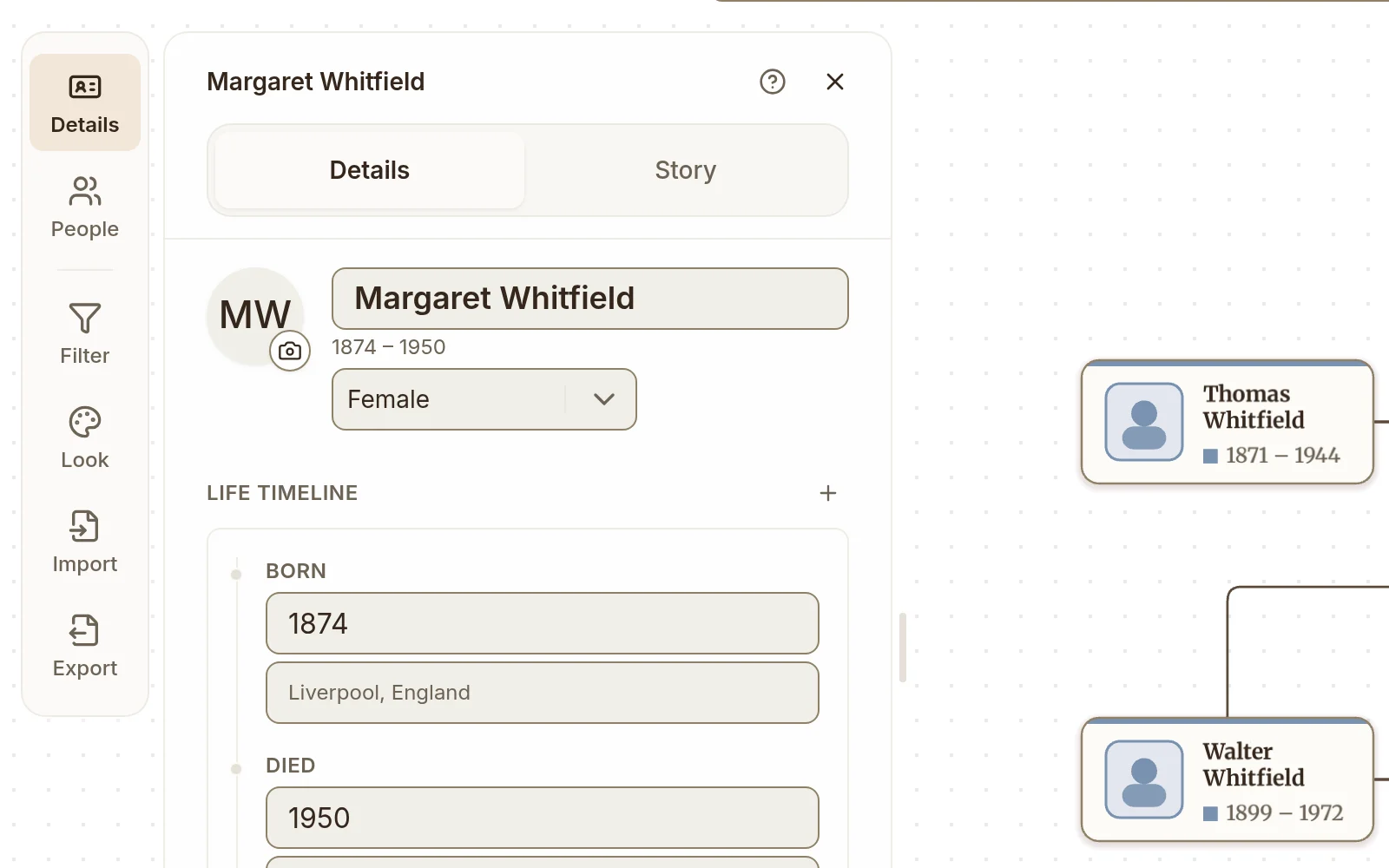
- Name is the only required field. Type it the way it is written: Draw My Tree reads the last word as the surname and keeps a leading particle with it, so "Vincent van Gogh" is shown, abbreviated, and exported under van Gogh rather than "Gogh". The particles it knows are the common European ones (
van,von,de,del,della,di,da,du,la,le,der,den,ter,ten,dos,af,av,bin,ibnand others), matched whatever their capitalization. The one place that still groups on the surname's last word alone is the family filter in the Filter panel; see below. - Birth date and death date (and baptism and burial) accept full dates (
1888-04-12or12 Apr 1888), a month (Apr 1888), or a year (1888). Partial dates are fine; type what you have. - Approximate dates are fine too. Type
about 1850,c. 1850,circa 1850or~1850;before 1900orafter 1850;between 1850 and 1855;from 1850 to 1855; or the GEDCOM formsABT,CAL,EST,BEF,AFT,BET … AND …andFROM … TO …. While you type, the line under the field shows how it reads ("Reads as: about 1850"), or says why it won't save, such as text that isn't a date or a range whose second date comes first. The details panel and reports say it in words ("before March 1900"); cards shorten it ("c. 1850", "bef. 1900", "aft. 1850", and "c. 1850–55" for a range). GEDCOM export writes it back asABT 1850,BEF MAR 1900orBET 1850 AND 1855. A date only known as a range sorts siblings by its first year, and counts by its last year when deciding who may still be living. - Dates that can't all be right show in the issues chip in the toolbar, once per person, in plain words: a death before the birth ("Tom Hale died in 1850, before their birth in 1900"), or a parent who would have been under 10 or over 80 when a child was born ("John Walsh would have been 104 when Margaret Walsh was born"). Fix the year that's wrong and the entry goes.
- Event dates (census, marriage and other records) take the same forms: a day, a month, a year, or an approximate date such as
about 1850orbetween 1850 and 1855. A GEDCOM import keeps each event's date as the file recorded it, and the GEDCOM export writes it back the same way. - Gender controls a few visual cues: the shape mark beside the dates (a square for male, a circle for female, a diamond otherwise; on by default, Gender shape mark in Look turns it off), the card accent color by default, and GEDCOM export. Choose Not set to clear a gender recorded by mistake.
- Tags are free-form labels. Use them however you like: "Veteran", "Immigrant", "Maternal line".
Each field saves as you go; press Enter or click away to commit it. You can fill in more later. Everyone after the first person is added by linking them to someone already in the tree; see below.
Linking people
Draw My Tree has two kinds of relationship:
- Parent–child, the directional link between a parent and their child.
- Partner, a non-directional link between two people who are or were a couple.
On the canvas, hovering or selecting a person shows a small round + on the top-right corner of their card, in the card's own colors, clear of the name and dates. It grows with the card as the card lifts under your pointer. Click it and pick Add a parent, Add a partner, or Add a child; the new person is created, linked, and selected, ready to rename. Right-clicking a card offers the same three actions alongside the rest of its menu, and the Add relative button at the foot of a selected person's Details panel opens them too.
How the + behaves:
- A selected card keeps its + even as you move the pointer elsewhere, so you can reach for the button without losing it.
- Zoomed far enough out that cards are down to initials, the + steps aside; zoom back in and it returns.
- Keyboard: Tab into the tree, move between people with the arrow keys, and Tab once more from a selected person to reach their +.
Filling in an unknown partner
When someone is the only recorded parent of their children, the tree draws an Unknown card beside them so the children still sit under a couple. That card stands in for a person you haven't added yet. Click or tap it, use its +, right-click or long-press it, or reach it with the arrow keys from its partner and press Enter, and the side panel offers to add them: type a name if you know it, pick a gender, and untick any child who belongs to a different partner. Add to tree puts the real person in the Unknown card's place, linked as the partner and as the other parent of the children left ticked, and opens their details so you can carry on with dates, places and photos. Nothing is added until you press it; Escape, the close button or a click on the canvas leaves the tree as it was, and anything you typed is still there when you come back to that card. While the Filter panel is open, clicking an Unknown card picks its partner as the focus person instead. To hide these cards altogether, turn off Show “Unknown” partners in the Filter panel.
To add a relationship to someone already in the tree, open a person and find the Family section. It has three fields: Parents, Partners, and Children. Use a field's dropdown to link someone already in the tree, or click Create new parent, Create new partner or Create new child to add a brand-new person, linked straight away and ready to rename. If there's a choice to make (which partner a new child belongs to, say), a short dialog asks first. Changes apply immediately.
Typing a change
You can also type a change into the search box (Ctrl/⌘ + K) in plain words. The box shows what it will do under Change the tree, and nothing changes until you choose that row or press Enter. Some sentences it understands:
- "add Ann as John Smith's daughter", "add a son named Tom to Mary", or "add John's wife Jane"
- "add Ann as the daughter of John and Jane", for a child with both parents at once
- "add Paul as Mary's brother, born 1852" or "add Liz as Tom's wife (1850–1901)", with dates in any form the date fields take
- "Mary is John's sister", "Ann is the daughter of John and Jane" or "Tom and Ann are married", to link two people already in the tree
"Him", "her", "them" and "this person" mean whoever is selected. Words like daughter, husband or brother also set the new person's gender; child, partner and sibling leave it unset. When a name fits more than one person, each one gets a row with their years so you can pick the right one. When a new child's parent has a partner, the first row adds the child to both of them and the next to that parent alone. A sibling needs a parent in the tree first, since a sibling shares their parents. If the change can't be made (a third parent, or someone becoming their own ancestor), the box tells you why. Every change is one you can take back with Undo. Typing a change works for everyone who can edit the tree; viewers see search only.
Parent–child types
Every parent–child link starts as biological. To change it, use the label beside the relative's name under Family, or Parentage in the link's own panel:
- Biological: the default.
- Adoptive: for legal adoption.
- Foster: a foster parent.
- Step: a parent through remarriage.
- Guardian: a non-parent caretaker.
Each type changes the style of the line, and survives a GEDCOM round-trip.
Confidence
If you're not sure about a parent–child link (an unsourced family rumor, say), open the link (the link icon beside the name under Family) and set Confidence to Certain, Probable or Possible. A new link is Not stated until you choose. The setting is recorded with the relationship so you (or an assistant reading the tree) can tell a confirmed link from a tentative one.
Partner status
For partners, the status options are married, engaged, partnered, separated, and divorced. You can also set a start year and end year if you have them.
Multi-parent families
A person has at most two parents in the app: Add a parent is greyed out once there are two, and a file you import keeps every parent it names. A stepparent needs no parent link: add them as a partner of the parent, and Draw My Tree names them a stepfather or stepmother in Relationship to…. To record an adoptive, step or foster parent in a parent's place, set the link's type under Family (see Parent–child types). Draw My Tree gathers the parents who share children into one family, so their children hang from the same line. Family markers in Look shows that join as a small mark between the generations.
If a person ends up with too many parent links to read, split the tree by branch: Family name in the Filter panel shows one side at a time.
The order of brothers and sisters
Siblings are drawn eldest first, left to right (top to bottom when the tree runs sideways), by their birth dates. A child with no birth date keeps their place among the others: the order a GEDCOM file listed them in, or the order you added them. Twins keep that order too. To put an undated child in the right place, right-click their card, choose More, then Move left among siblings or Move right among siblings (Move up / Move down when the tree runs sideways); two siblings whose birth dates already set their order can't be swapped this way, so fix a wrong date instead. A GEDCOM export lists each family's children in the same order.
Where a person had more than one partner, the earlier marriage sits on one side and the later on the other. A husband and wife sit on the side of their own families, so lines don't cross; Couples under Chart options in the Look panel can put the husband first instead, as older printed charts do, wherever that adds no crossing line. The order never adds a crossing line: when a family's lines can only meet the other way round, they keep it.
Editing and deleting
Click any person to bring up their details, then click any field to edit it in place; changes save as you go. (The Story editor is the exception; it has an explicit Save and warns you about unsaved changes before you close the panel.)
To merge two records of the same person, see Merging duplicates below. To delete a person, scroll to the end of their Details and select Delete person. It sits there, away from Add relative and Focus on their line in the panel's footer, so it is never one slip away, and it asks before anything is removed. The person goes to Trash, and the message that confirms it has an Undo. If they were someone's only link to the rest of the tree (a parent whose partner has no other family in it, say), those relatives have no family left in the tree, so Hide people not linked to anyone in the Filter panel takes them off the drawing too; the message says how many. They are still in the tree and listed under People.
Merging duplicates
Importing from two sources, or adding a relative by hand who was already there, can leave one person in the tree twice. Merging folds the duplicate into the record you keep.
Start a merge in one of three ways:
- Right-click a card (or press
Shift+F10on it), choose More, then Merge with…. - Scroll to the end of someone's Details and select Merge with….
- Open the issues chip in the toolbar. When two people share a name and their birth and death years are within two years of each other (or unknown), it lists them as a likely duplicate with a Review link. Records with a different recorded gender or suffix (Sr. and Jr.), that are linked as parent and child or as partners, or siblings where one died before the other was born (a child named after one who died young), are not suggested. If a suggestion is two different people, select Not the same person and it stays off the list on this device. When two or more pairs also have a birth or death year on both and neither person matches anyone else, the list offers Merge the 2 pairs below them, after one question; in each pair the person who was in your tree first stays.
Pick the duplicate. From a card or the details panel, search for the other record; people with the same name are listed first, with their years beside them so namesakes are easy to tell apart.
Compare and choose. The two records sit side by side, the one that stays on the left. Use the swap button between them if the other record should be the one that stays. Where both records hold a different value (two birth dates, two spellings of a name), pick the one to keep; the record that stays is chosen by default, and the value you don't pick is not kept (a name you don't pick stays as an alternate name). A value only one record has is carried over automatically, and an empty value never replaces a filled one. Two different stories are both kept, one after the other, unless you pick one; each is shown in full. For On public links, the more private of the two settings is chosen by default, so a merge never makes someone more public unless you pick that.
What is combined rather than chosen:
- Relatives. Every parent, child, and partner link moves to the record that stays. A link both records had (the same mother, the same husband) becomes one link, keeping its sources and events, and filling in any detail only the duplicate's copy had, such as a marriage year. Where the two copies recorded a detail differently (adoptive and biological, two marriage statuses), the kept record's is used; the compare screen lists these links and any such difference before you merge. A link between the two records themselves is dropped, and anything attached to it moves to the person.
- Events, photos, and sources all move to the record that stays. On a free account, which keeps one portrait per person, two records that each have a portrait can be merged once one of the portraits is deleted, or with the Family Plan.
- Tags and alternate names are combined, and the name you did not keep becomes an alternate name, so searching for either spelling still finds the person.
Merging is refused when one record is recorded as the other's parent or ancestor (a father and his namesake son, or a grandfather and grandson linked through the son): merged, the person would be their own ancestor. If they really are one person, fix the wrong parent link first.
Undoing a merge. The message that confirms a merge has an Undo, and it is also the toolbar's Undo ("Undo merge of Jon Smith"). It puts both records back exactly as they were before the merge: each person's own details, links, events, photos and sources, the person the tree opens on, and what each saved version shows. Redo merges them again. It works for 24 hours while the tree stays open, and only for the person who merged. If anyone has since edited the record you kept, a link it took over, or an event or photo that moved, Undo says "Couldn't undo the merge: someone edited these people after it." and the merge stays. Merge the 2 pairs from the issues list, and a merge an AI assistant makes, have no Undo.
Past that, the duplicate's own record is in Trash, where the tree owner can restore it for 30 days. Restoring brings back that record's own details as a separate person; the links, events, and media that moved stay with the record you kept, so the restored story's citations become plain text. A tree you are building without an account has no Trash, so the dialog says so before you merge; there, Undo works until you leave the page.
Owners and editors can merge. An AI assistant connected to your trees through the Draw My Tree MCP server can merge people in trees you own with the tree_merge_people tool, which follows the same rules.
Undo and redo
Changed something by mistake? Undo (the curved arrow at the top of the tree, or Ctrl/⌘ + Z) takes back your last change to the tree, and Redo (Ctrl/⌘ + Shift + Z, or Ctrl + Y) puts it back. Hover either button to see what it would undo, such as "Undo rename of Ada Lovelace". You can also find both in the search box (Ctrl/⌘ + K).
- What it covers: adding, editing and deleting people, their relationships and the kind of each link, records and events, notes and source links, photos and documents you upload or delete, merging two people, and choosing the home person. Adding a relative and linking them in one go undoes as one step, and so does uploading a photo and making it the profile picture. A deleted person comes back with their links, records and photos, and a removed link comes back with its kind, its dates, and the events, notes and source links it carried.
- Only your own changes: on a shared tree, undo never takes back what someone else changed. If what you want to undo has since been deleted by someone else, it says so and moves on.
- While you are typing in a field,
Ctrl/⌘+Zundoes your typing, as usual; it only undoes tree changes when you are not in a text box. After moving a slider or ticking a box it undoes the tree change. It waits while a menu is open on the tree or a story is being edited, so finish or close those first. Pressing it several times in a row takes back that many changes, one after another, even while the first is still saving; if one can't be undone, the presses after it are dropped and you are told. - How far back: your last 50 changes, for as long as the tree is open. Opening another tree or reloading the page starts afresh, and so does an import, which changes too much at once to step back through.
- What it cannot bring back: an uploaded file that was on a removed link, or a change to the tree's name. Past that, the tree's owner can still restore a deleted person from Trash for 30 days. Undoing an addition leaves Trash alone while the person is still just what you added a few minutes ago. If anyone has changed them, linked them or attached records since, or you added them a while back, they go to Trash, so nothing is lost, and Draw My Tree tells you.
Viewers, and anyone looking at a share link, cannot edit the tree, so they have no undo.
The home person
Every tree opens on one person: the home person. A tree too big to read whole opens close up on them with their parents, partners and children, with a note at the bottom saying so, and pressing Tab into the tree starts on their card. The note goes once you drag, scroll or zoom; press Show whole tree or close it, and that tree opens without it on this device from then on. Ancestors only, the fan chart, the Couple's chart and the map start from them too (see Who a chart starts from). To choose who it is, select them in People and press Make home person beside their name, or right-click their card (press and hold on a phone, or Shift + F10 on a focused card), choose More, then Make home person, or use Make home person at the end of their Details. The charts move to them at once; the tree already on screen stays where it is and opens on them the next time. People marks their row Home person, and More shows Home person with a check mark; choose it again to clear the choice, and the charts start from a suggested person instead. Once a tree has a home person, each person's Details says under their years how they are related to them, such as "Emily's great-grandmother", or "Your great-grandmother" while the home person is the starter tree's You.
The choice is saved with the tree, so everyone you share it with, and a public link, opens on the same person, unless the link shows that person as "Private". Owners and editors can change it; it is one step of Undo. An import picks one for a tree that has none (see Importing the file).
Who a chart starts from
Above Ancestors only, the fan chart and the Couple's chart, Starts from names the person the chart is built around. The map's Generations from is the same choice, so changing it on one chart changes it on all four. Open it to pick anyone: the home person and the person you have selected are at the top of the list, and typing a name finds anyone else. Start the chart from here on a card's menu does the same (if you can edit the tree, it is under More). Selecting a card only selects it, so the chart stays put while you look around. The choice lasts while the tree is open, and a version you save keeps it.
When the person has nothing to draw on that chart, such as no recorded parents on Ancestors only or no partner on the Couple's chart, the chart shows them on their own and a note under Starts from says so, with a button to add the missing relative and Start from someone else. A tree with no home person starts from a suggestion, marked (suggested): its first person when they have recorded parents, otherwise whoever has the most recorded ancestors. The tree itself opens on the same person.
Folding a branch away
To make room in a big tree, right-click someone who has children (press and hold on a phone, or Shift + F10), choose More, then Collapse branch. Their children and everyone descended from them leave the canvas, with any partner who is only tied to that branch, and a small +12 under the person's card says how many are tucked away. Everyone else keeps their place in the drawing, and the view refits to what is left. Choose Expand branch to bring them back. A collapsed branch lasts until you expand it, reset the view, or leave the tree, unless you save it with a version, which keeps its collapsed branches; prints and exports leave out what is collapsed, without the count.
Finding someone in a big tree
Two ways:
- Search: click the search box in the toolbar (or press
Ctrl/⌘+K) and start typing a name; matching people show up (capitals, accents and apostrophes don't matter, so "obrien" finds O'Brien and "jose" finds José), and choosing one selects and centres it. With more matches than fit, Show all matches in People lists every one. - Family filter: once you've imported or built out multiple family names, Family name in the Filter panel lets you focus on one side at a time. It groups on the last word of each surname, so a suffix, nickname or "née" never becomes a family of its own ("Robert Whitfield Jr." is a Whitfield), a card still called "New person" or someone known by a single name joins no family, and a particle surname is listed under its final word ("Gogh", not "van Gogh") even though the cards themselves show the whole surname. That keeps every saved filter pointing at the family it was saved under.
A family name or a focus you come back to can be kept: set it, then press Save current filter under Saved filters at the top of the Filter panel and give it a name. Each saved filter is a button there that puts it back in one click. Saved filters are kept in this browser only: another device or browser won't have them, and clearing this browser's data deletes them.
When a filter changes who is drawn, the people who stay glide to their new places, so you can follow where someone went. To have the tree change in one step instead, turn off Animate filter changes under This device only in Look.
Seeing what the tree is missing
The Insights panel, in the tree's ⋮ menu beside its name (under More in the bottom bar on a phone), shows how far back the selected person's ancestry goes, the furthest-back ancestor on each grandparent's line, whether any ancestor appears twice, the places in their family, and who in the tree has no birth date, birthplace, death place or parents yet. Each name in it selects that person, so you can work through a list without closing the panel. Pedigree collapse and research gaps has the details.
What to read next
- Stories, photos, and events: go beyond names and dates.
- Customizing the look: change the cards, colors and layout.
Last updated October 31, 2026 by Prescott Bros LLC, the makers of Draw My Tree.