Exporting your data
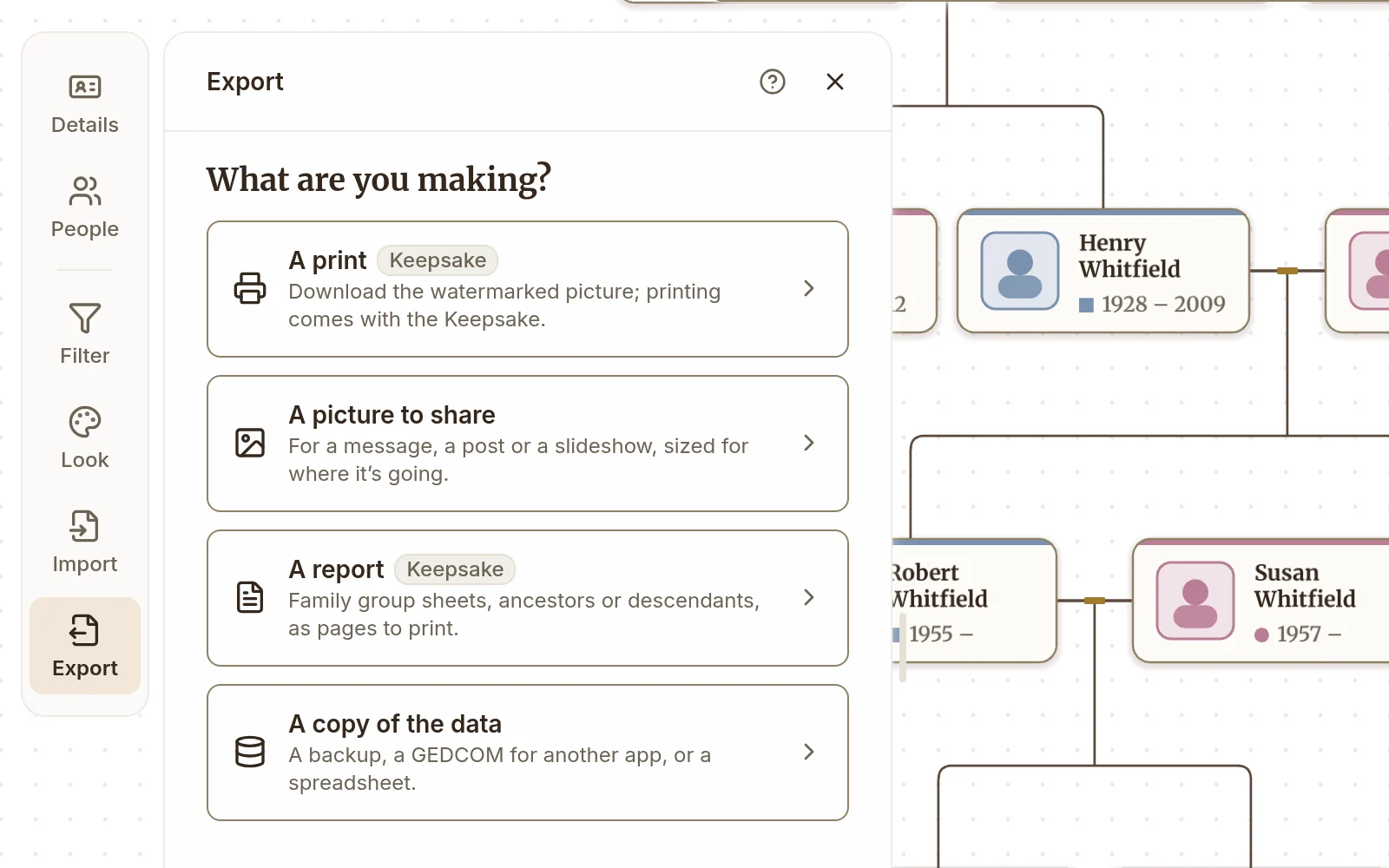
Export your tree to move it to another tool, keep a backup, or send it to relatives. Open the Export panel from the Export button on the rail and it asks What are you making?: a print, a picture to share, a report about someone, or a copy of the data. Each answer is a few short questions ending in the download. A copy of the data asks what the copy is for (a backup, another genealogy app, or a spreadsheet) and picks the format for you. All export options, at the foot of the question, is the whole form with every format and setting on one page, and Make it again lists the setups you have saved there. Files download to your computer; Draw My Tree doesn't keep a copy on its servers.
Print your family tree as a PDF, SVG, or PNG covers the image formats, sizes, looks and watermarks. To give family their own access to the tree, or a link to look at it, see Sharing a tree.
If you're building as a guest without an account, export is limited to a watermarked, screen-sized PNG. A free account adds a complete JSON backup. Printing at paper and poster sizes, printed reports, and PDF, SVG, PNG and JPEG at full resolution, GEDCOM and CSV come with the Family Plan, or with a one-time Keepsake bought for a single tree from its Export panel, which unlocks those formats for that tree for as long as it exists. The unlock stays with that tree; a new tree does not get it. Every tree downloads in full as JSON, free, always. GEDCOM for other genealogy apps comes with a Keepsake (for that tree, for good) or while you’re on the Family Plan. Nothing is locked in.
Data formats
The tree's owner and its editors can download these. Someone invited to view a tree exports pictures and prints of it, not its data.
For other apps
- GEDCOM: the standard family tree exchange format. Use this to import into Ancestry, MyHeritage, FamilySearch, RootsMagic, or any other genealogy app. It carries names (with nicknames, and the surname where you've set one), genders, birth/death/burial/baptism dates and places, religion, stories and text notes (as notes, with a note's title and caption as its first lines), tags, life events such as census, immigration, occupation and residence, marriage, engagement and divorce, adoptive and other non-birth parent links, links to photos and documents with their titles, captions and sources, and your links and sources as source citations, each with its page and web address. The records on a couple go on their family record. GEDCOM has no place for records on the link between a parent and a child, so those go on the child, marked with the parent they belong to: another app keeps them on the child, and a re-import into Draw My Tree puts them back on the link. Multi-parent families export as a primary parent pair plus extra single-parent families when needed.
- JSON: Draw My Tree's own format, a complete JSON backup downloaded as a
.zip. The zip holdstree.json, with every record including events, media, stories and the tree's home person, and amediafolder with every photo, video and document you uploaded. Importing the zip into Draw My Tree restores the tree and its files. The best choice for backups.
For spreadsheets
- CSV: one row per person, with denormalized lists of parent, child, and partner IDs. For working with your tree in Excel, Google Sheets, or a scripting tool. Events and media don't come through.
Data formats always cover everything in the tree, or everyone the current filter shows; What's on screen only applies to images.
What each format leaves out
- GEDCOM carries facts only. Colors, fonts and layout choices don't come through, and neither do Draw My Tree's privacy settings (living/deceased overrides and public-link visibility). Export JSON to keep the privacy settings. No data format carries the tree's look; save it as a look in Look instead.
- CSV flattens relationships into ID lists. Unless you are working in a spreadsheet or a script, use JSON instead.
Sending a file safely
A file you send can't be taken back, and it may hold sensitive information about living people: names, stories, photo links, tags. Before sending a file or posting it publicly:
- Living people. Birth dates and other identifiers of people still alive are often left out of shared files. Draw My Tree doesn't do this unless you ask: turn on Leave out living people before you download, and their details stay out of the file (anyone a family line runs through stays, without their details). A public link is different: it hides people who appear to be living by default.
- Private notes. If you've used stories to track "Aunt Mae thinks Grandpa cheated on his taxes", that text travels with most formats. Remove anything you wouldn't want shared.
- Photos. The JSON backup holds every photo and document you uploaded, so anyone you send it to has them. With Leave out living people on, the photos of the people it leaves out stay out too. GEDCOM leaves uploaded photos out. A photo linked from elsewhere (Google Drive, say) travels as its link in every format, and works only for people that link lets in.
For public sharing (a website, a printed gift), export only what you need: choose What's on screen for an image. On the Family Plan or a Keepsake you can also leave the watermark on to credit the tool.
Backups
To back up a tree, export JSON every so often with no filter active and Leave out living people off, and save the .zip somewhere you trust. It restores via Import → Replace entire tree: the people come back first, then the photos and documents upload, and the stories' citations point at them again. A free account restores one portrait per person; the preview says how many files won't upload, and why, before you apply it.
What to read next
- Sharing a tree: invite family by email, or publish a read-only link.
- Print your family tree: PDF, SVG and PNG, sizes, looks and watermarks.
- Import a GEDCOM from Ancestry, MyHeritage or another app: including how to bring a backup back in.
- Custom JSON format: schema reference for the JSON export.
Last updated October 23, 2026 by Prescott Bros LLC, the makers of Draw My Tree.