Sharing a tree
There are two ways to share a family tree from Draw My Tree. Invite someone by their email address and they get their own sign-in to the tree, to view it or to edit it with you. Publish a public link and anyone who has the link can look at the tree, read-only, without an account. Both start from Share in the toolbar of a tree you own.
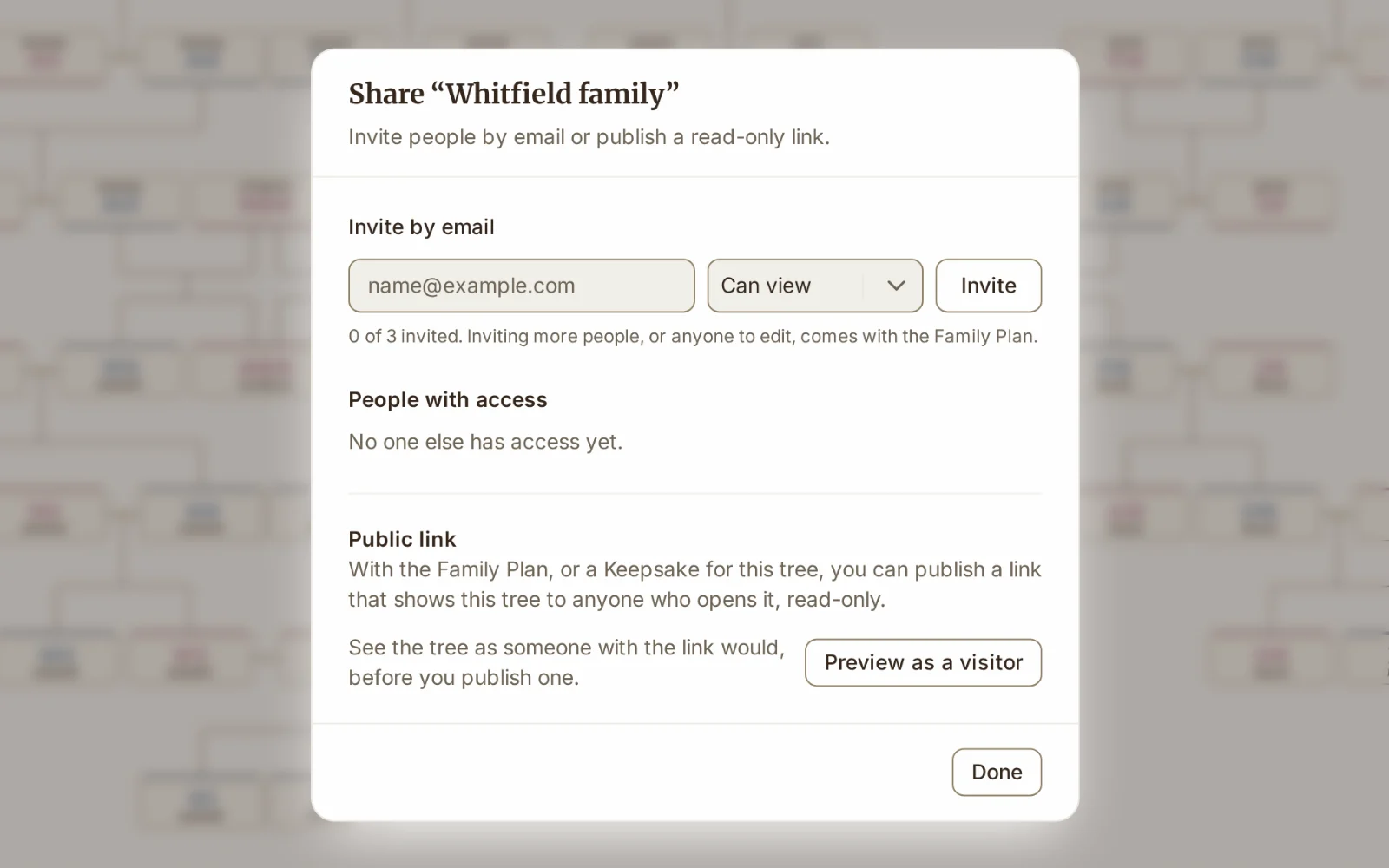
Invite someone by email
- Open the tree and choose Share in the toolbar.
- Type their email address, choose whether they can view the tree or edit it with you, and add them.
- Tell them to sign in to Draw My Tree, or create a free account, with that same email address. If they don't have an account yet, Draw My Tree emails them an invitation to sign up. If they already have one, nothing is emailed, so let them know yourself. The tree is waiting under Your trees, in the group of trees shared with them, and the bell on their account says it is there.
People with access in Share lists everyone you invited, including invites that haven't been accepted yet. Change someone between viewing and editing there, or take their access back at any time.
Who can do what
- Viewers read the tree and can export a picture or a copy of it. They can't change anything, and their copy leaves out each person's Show on public links setting, so it never says who asked to be hidden.
- Editors edit everything the tree holds: people, relationships, events, photos and records, stories, whether someone is living or deceased, the tree's look and name, and every version, including one with a public link (though who that link shows is for whoever may publish, below). They can import a file into the tree (but not replace the whole tree) and export a full copy of the data.
- Editors can publish is a switch in Share. A new tree starts with it on; a tree made before the switch existed starts with it off, until you turn it on. While it is on, editors can also turn public links on and off, change a link's settings (such as Hide living people), choose who each link shows, with its version's filter and a person's Show on public links, open Preview as a visitor, and read and resolve the privacy requests people send from a public link. Turn it off and those stay yours alone. Either way, a person set to "Always hide" can only be deleted or merged away by someone who may publish, so an honoured request to be left out is not lost with the record.
- Only the owner invites people and changes their access, turns Editors can publish on or off, replaces the whole tree by import or Start over, deletes the tree, and restores it from Trash. An AI assistant connected through the Draw My Tree MCP server only ever works on trees you own.
- Anyone invited can leave a tree shared with them: choose Leave this tree in the tree's options menu, next to its name. They lose access until the owner invites them again.
How many people you can invite
Every tree can invite people by email. How many, and whether to edit, depends on what the tree has:
- A free tree can have 3 people invited, to view it.
- A tree with a Keepsake can have 10 people invited, to view it.
- With the Family Plan you can invite up to 250 family, to view or to edit.
Invites that haven't been accepted yet count too. Removing someone, or their leaving, frees their place. Without the Family Plan, Share shows how many you've used, and choosing Can edit (Family Plan) offers See plans in place of Invite.
A limit only stops new invites. Nobody you already invited loses access because of it: if the tree's Family Plan ends, everyone you invited keeps read-only access until it comes back, even when that is more people than the tree could invite now.
Publish a public link
- Open Share and turn on the Public link switch.
- Choose Copy beside the link and send it however you like: a message, an email, a post.
- Before you send it, Preview as a visitor shows the tree exactly as someone with the link will see it.
Anyone with the link can view the tree, read-only. They can't see anything you've hidden from it. Public links come with the Family Plan, and a tree with a Keepsake has one too.
What a public link shows
- Living people are hidden by default. Hide living people on the public link is on until you turn it off. Someone counts as living when nothing records a death (a death or burial date or place) and they were born or baptised in the last 100 years, or have no date of their own and nothing in the tree, such as a child's birth or their marriage, places them earlier. Set Living status in their details when the guess is wrong. Set a person's Show on public links in their details to always show or always hide them, whatever the switch says.
- The look saved with the tree, chart included: if the saved look is a fan chart or a timeline, that is what opens. Save the look again after changing the chart if you want the link to follow.
- One version per link. With the Family Plan each version of a tree has a link of its own, showing only the people that version's filter shows. A branch for one side of the family can go to that side alone.
Link previews
Paste a public link into a message or a post and the app shows a preview card before anyone opens it. By default that card reads only "A shared family tree", with no name or count. Turn on Show the tree's name in link previews in Share and it shows the tree's name and how many people and generations it has, never a person's name. Name the tree with that in mind, and remember that apps keep a preview they have already made for a while after you turn the switch off. Turning the public link off turns this switch off too, so a link you enable again starts private.
Rotate or turn off a link
Turning the Public link switch off pauses the link: it stops working at once, and anyone who opens it is told it is no longer shared. Turning the switch on again brings the same link back, so everyone who already has it can open it again.
Rotate, beside the link while it is on, gives the tree a new address. The old one stops working for everyone who has it, so anyone you sent it to needs the new one. To get rid of a link for good, rotate it and then turn the switch off.
If a privacy request on your tree stays open, Draw My Tree may turn off the tree's public links for you and tell you in the bell. That also gives each link a new address, so the one the person complained about never works again. When you turn a link back on, it has a new address to share.
Privacy requests
Anyone who finds themselves in a shared tree can choose Are you in this tree? in the tree's ⋮ menu on the public page and tell you what they would like: to be hidden, or a detail corrected. Their request arrives in Privacy requests in Share, and the bell tells you. Hide them with Show on public links set to always hide, correct what they asked, then choose Mark handled.
Sharing a file instead
Once you send a downloaded export, you can't take it back the way you can turn off a link. Exporting your data covers what each format carries and what to check before you send one.
What to read next
- Versions of a tree: several ways of drawing one family, each with its own link.
- Your account and plan: what each plan includes and what happens when one ends.
- Exporting your data: GEDCOM, JSON and CSV, and backups.
Last updated October 11, 2026 by Prescott Bros LLC, the makers of Draw My Tree.