Customizing the look
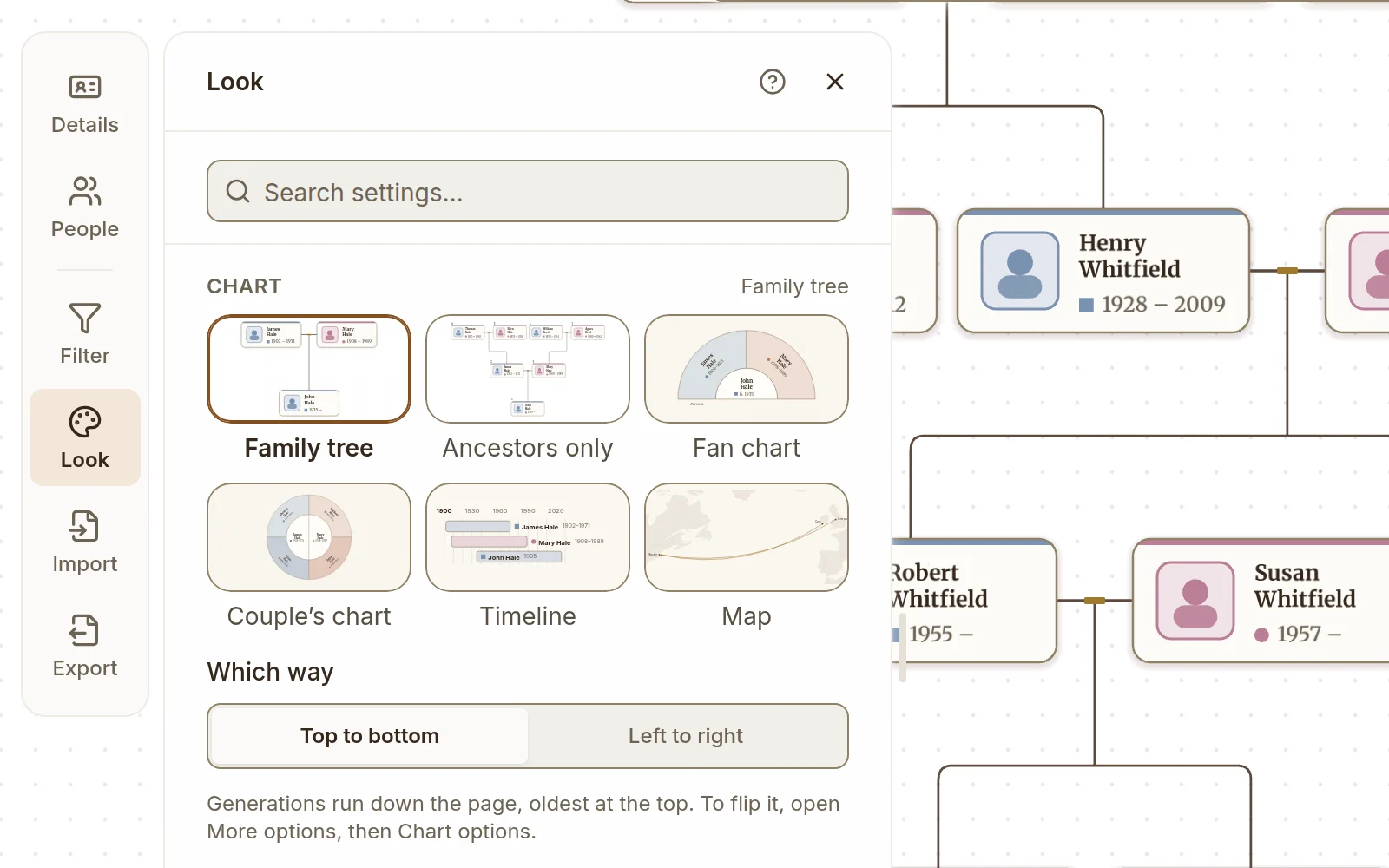
Nearly every setting for how the tree looks is in the Look panel on the rail. (The switches that decide who is drawn, rather than how, are under People shown in Filter; see below.) It opens short: a settings search, the chart picker, the preset gallery and the Basics, six settings most people need. More options under them opens every other setting, in sections: cards, photos, text, the background, lines, generation bands, and the chart's own options. Your device remembers whether More options is open, and a search always looks through every setting, open or not. On a wide screen the tree moves so the person you have selected, or the one it opened on, sits beside the panel rather than under it. On a phone, or any screen taller than it is wide, it opens as a half-height sheet and the tree moves up into the space above it. Either way the tree stays put once you have moved the view yourself, and you see each change as you make it. Turning a large tree on its side keeps the person you are on in view, close enough to read; Show whole tree fits all of it. Open Look from the rail to follow along.
A tree can keep more than one look as versions: Save at the bottom of the panel saves to the version on screen, which is named beside the tree's name once the tree has two. The look you save is what everyone with the tree or its link opens on, the chart included. Choosing another chart only changes what you see: the bar at the bottom says which chart the tree opens on for everyone, and its button (Open it on Fan chart on a fan) saves the chart on screen as the one everyone opens on. If you don't, the tree opens on its saved chart next time. While the look has other changes you haven't saved, the panel shows Unsaved, and the Look button in the panel rail carries a dot while the panel is closed; Save then saves the chart on screen with them. Leaving the tree with such changes asks first, with Save look & leave, Leave and Stay; closing the tab asks too.
Use the Reset button at the bottom of the panel to start over: it returns to the default look of the chart you are on, and keeps the chart and your Card size, Card width and Card height. Cancel takes back the changes you haven't saved and keeps the chart you are looking at: it returns to the tree's saved look, or to the look the tree opened with when nothing has been saved yet.
Chart and presets
At the top of the Look panel:
- Chart picks how the tree is drawn: Family tree, Ancestors only, Fan chart, Couple's chart, Timeline or Map, with the one on screen named beside the heading. Under the tiles, Which way turns a family tree or ancestors only Top to bottom or Left to right, and with the fan chosen, Show picks who is drawn round the person at the centre. On a phone those choices sit beside the Chart heading instead, and each tile's name is inside the tile. Timeline draws from years of birth and death and Map from places. Until two people in the tree have them, their tiles say Needs dates or Needs places, and choosing one shows what to add, with a button that opens the person to add it to. Couple's chart says Needs a couple until two people in the tree are partners. Each tile is drawn the way the tree will look once you choose it. Every chart has a default look of its own: the fan opens on warm paper with each grandparent's line in its own shade and its rings captioned, the timeline on plain warm paper, with no pattern and a sans face that reads well inside the bars, and the map on the fan's warm paper, with no pattern to fight the coastlines, in the same sans face. If you haven't changed the look, choosing another chart gives you that chart's default; if you have, your look comes with you. The chart you were on stays on screen until the new one has drawn, then fades into it.
- Three built-in presets apply with one click: Default, Old fashioned and Black & white. A preset is a style, so it keeps your chart, and its tile is drawn on the chart you're using. Default is the default look of that chart.
- The preset gallery lets you save the current look as a named preset and apply it again later. Apply a saved preset with a click, or delete one you no longer want. Saved presets are kept in this browser only: another device or browser won't have them, and clearing this browser's data deletes them. To keep a look with the tree itself, press Save at the bottom of the panel. Unlike the built-in ones, a preset you saved brings back the chart it was saved on, a tree turned on its side or a fan at its own depth and sweep included. No preset changes how a fan's cells are shaded: Shade cells stays as you set it, even with a preset saved on a fan shaded another way, because shading by birthplace is a finding with its own key rather than a style.
Basics
Under the presets, always in view:
- Card size makes every card and its text bigger or smaller. It stays as you set it when you choose a preset or press Reset, so you can pick bigger cards first and a style after.
- Hide photos leaves the portrait off every card. The other photo settings are under More options while photos show.
- Name format and Date format choose how names and dates are written on the cards.
- Family colors gives each of one person's grandparents a color (see Person cards below).
- Background color sets the color behind the tree. Auto puts back the look's own.
Card size, date format and family colors belong to the tree, so they appear while a tree is drawn, not a fan, a timeline or a map.
Every color setting opens the same picker: drag in the color area, type a hex code, or click a swatch. The swatches come in three rows: This look holds the colors your tree already uses, so a new color can match one you have; Heritage hues is a short set drawn from Draw My Tree's own palette, each one chosen to stand out against the card text or the card it sits on; and Recent keeps the last few colors you picked on this device.
Chart options
Chart decides the shape of the drawing, the row under its tiles which way it runs or whom it shows, and Chart options further down holds the rest of the settings for the one you chose. Which way offers:
- Top to bottom: older generations at the top, descendants below. Best for printable trees.
- Left to right: older on the left, descendants to the right. Works better for wide screens and trees with lots of generations.
Either direction turns round with Oldest generation at the bottom (or on the right): the tree then grows up from its founders, as many printed charts do, or reads right to left.
Ancestors only draws a numbered pedigree: one person and their direct ancestors, each couple side by side, and nobody else. Every card carries its number, the way genealogists count: 1 is the person, a father is twice his child's number and a mother twice plus one, so 2 and 3 are the parents and 4 to 7 the grandparents. An ancestor who appears through two lines carries both numbers. Starts from above the chart names the person it starts from and changes it (Who a chart starts from). Generations in Chart options sets how far back it goes, and turning off Ancestor numbers there leaves the numbers off the cards, the key and every export and print. For the classic printed form, with the person on the left and the ancestors running right, choose Left to right with Oldest generation on the right.
-
Fan chart: one person at the centre and their ancestors in rings around them: parents in the first ring, grandparents in the second, and so on, the father's line on the left and the mother's on the right. It starts from the tree's home person; choose someone else in Starts from above the chart, or with Start the chart from here on their card's menu. Selecting a cell only selects it. On a tree you can edit, a dashed cell with a + is a parent nobody has recorded yet: select it to choose a relative to add. Someone you add is selected so you can type their name, and the fan stays where it was. A fan shows direct lines only, so partners and siblings are a click away in the person's details rather than on the chart. When cousins married, the same ancestor fills more than one cell: point at one and every place they appear is outlined, and the small 1/2 tag in its corner (or N on the keyboard, Shift+N to go back) takes you to the next. Portraits show in the centre and the first ring when the look shows photos, and each person's years carry the same square, circle or diamond mark as a card.
-
Couple's chart: a couple at the centre, side by side, one partner's ancestors filling the left half of the circle and the other's the right, the way a wedding or anniversary chart is drawn. It shows the person in Starts from above the chart and their partner (their latest, when they had more than one, passing over a partner shown as Private): the tree's home person until you choose someone else there. Choose a partner's father and he and his wife take the centre, with both of their families. Someone with no partner in the tree is drawn with their own ancestors, and a note says so with Add a partner. Generations in Chart options counts the rings, the couple included, and Shade cells works as on the fan: by family line, each partner's family is in its own color.
With Fan chart chosen, Show under the tiles picks who is drawn round the person at the centre: their Ancestors, their Descendants (children in the first ring, grandchildren beyond, eldest on the left), or Both, ancestors above and descendants below. Chart options then holds Generations (how many rings, two to seven), Sweep (a half circle, three quarters, or a full circle; the wider the sweep, the more room the outer names get; Both always takes the whole circle), and Shade cells (by family line, by gender, by generation, by birthplace, or plain).
By birthplace gives each country people in the fan were born in its own color, so the birthplaces show. The country is read from the end of the place you typed: "Plattsburgh, Clinton, New York, USA" counts as United States, and so do "Plattsburgh, NY", "Toronto, ON" and "Boston, Massachusetts" (a US state or Canadian province on its own counts as its country). Older abbreviations such as "Mass.", "Calif.", "Penna." and "N.Y." count too. Where another country writes the same letters after a town, as in "Perth, WA", "Darwin, NT", "Milano, MI" or "Amsterdam, NL", the rest of your tree decides, and only two kinds of place count: places written with a code or abbreviation ("Sydney, NSW", "Toronto, ON", "Pittsburgh, PA"), and places written out in full from town to country ("Sydney, New South Wales, Australia", "Erie, Pennsylvania, USA"). With more of those for Australia than for the United States, "Perth, WA" counts as Australia; a tie keeps the usual reading. A named region before the code settles it outright ("Milano, Lombardia, MI" is Italy). A place that ends in a region's full name, such as "Cosenza, Calabria" or "Toronto, Ontario", or that names only a country, such as "Calabria, Italy", doesn't count either way. Places written out in full count for another country only while no other place in your tree, typed with a code or written in full, stands for the usual one, so ancestors imported as "Cosenza, Calabria, Italy" leave a family's "Pittsburgh, PA" beside "Erie, PA" or "Erie, Pennsylvania, USA" in the United States. A well-known US city settles its code by itself, so a lone "Detroit, MI" or "Pittsburgh, PA" among them is still the United States, while "Milano, MI" in a tree written in full reads as Italy. With nothing else to go on, a two-letter code counts as the US state or Canadian province (CA is always California), NT as Australia's Northern Territory, and NL and SK as the Netherlands and Slovakia. A code that is also a country's, such as "IL" or "DE", always counts as the US state, so "Haifa, IL" is Illinois: write "Haifa, Israel" for the country. "SA" could be South Australia, South Africa or Saudi Arabia, so it is kept as written. In your own view and your exports, everyone's birthplace counts, including people hidden by Hide living people, so the fan reads the same with it on or off; a hidden person's own cell is never colored by their place. On a public share link only the places shown count, so a shared code can read differently there. Common spellings are folded together (USA, U.S.A. and United States are one place; Holland is the Netherlands), while England, Scotland, Wales and Northern Ireland stay apart, as they are in the records, and an old name like Prussia is kept as written. The eight most common places get a color each; the rest share Other places, and anyone without a birthplace (or with "Unknown") is Not recorded, drawn plain. A Birthplace key in the bottom corner lists every color with how many people it covers (fold it away with its heading if it covers the fan), and the same key is printed under the fan when you export or print it. The colors are mixed from the look's own, so they suit every preset; a black-and-white look has fewer shades to give, so after a couple of greys the places are told apart by hatching. Hover or focus any cell to hear or read its place in words. The fan takes its colors, typeface and background from the rest of the look, and turning on the generation bands captions the rings of a half fan. The spacing settings below belong to the family tree and step aside while a fan is drawn. A fan exports, prints and shares like the tree does.
- Timeline: everyone's life as a bar on one line of years, oldest first, so you can see who was alive at the same time. A bar runs from birth to death; someone born within the last century with no recorded death runs to today. When only one year is recorded the other end is a guess, and the bar is drawn dashed and paler. A dot on a bar marks a recorded marriage; point at it for who and when. Select anyone and their lifetime is shaded across every row, with the people who never overlapped it faded back; click an empty part of the timeline to clear it. People with no years at all are listed under the timeline, ready for you to add some. The timeline shows the same people as the tree, so the Filter panel's family, focus and hide-living settings all apply to it. Drag or scroll to move along it; the years stay pinned at the top. From the keyboard, the up and down arrows move between people and Enter opens one. It exports and prints like the tree does.
- Map: a family migration map, with a dot for every place someone was born, lived, married, died or was buried, and a line with an arrowhead for each move between them. A bigger dot holds more people, a hollow dot is a place found only as its county, state or country, and places close together are drawn as one ringed dot with a box in the corner spreading them out. The lines take a color and a dash for each generation; under the map's Key, Color by switches them to Family lines. Select a dot, or move to it with the arrow keys and press Enter, to see who was there; List of places lists every place in words beside the map. The map shows the same people as the tree, so the Filter panel applies to it, and it prints as a "Where we came from" poster. Make a family migration map covers it in full.
Within-generation spacing and Between-generation spacing control how far apart cards sit. Spacing presets cover Compact, Balanced, and Spacious; or set your own pixel values with the sliders.
Card width and Card height make every card wider or taller without making the writing bigger (that is Card size). At 100% a card fits the names and dates on it. Card width goes from 80% to 160% and Card height from 100% to 160%, as far as your cards can go: no card gets narrower than the narrowest card or larger than the largest, so with a large Card size the sliders stop sooner, and Card width goes under 100% only when long names have made the cards wider. Under 100% long names are shortened to fit, and the whole name is still in the person's details. Card height keeps the writing in the middle of the card. Like Card size, both stay as you set them when you choose a preset or press Reset, and an export or a shared link draws the cards at the same size.
With a mouse or trackpad, Resize cards on the tree under the sliders puts a handle on each side of the selected card (or the card the tree opens on, with nobody selected). Drag a side: a dashed outline shows the new size, and every card takes it when you let go. Click another card to move the handles to it. Press Esc while dragging to leave the size as it was, and Esc again, or Done resizing, to finish. Double-click a handle to put that side back to 100%. Cancel at the bottom of the panel takes back a size you haven't saved.
Auto-collapse distant branches hides far-away parts of the tree to keep the canvas readable. The depth slider controls "how far is too far", counted in relationship steps out from the person the tree is centred on. What is left re-flows into a compact tree rather than keeping the gaps where the hidden branches used to be. Turn it off to see everything.
Distance is counted person to person, so it can fall between two parents of the same child: if a child is inside the depth but one of its parents is only reachable through that child, the parent is hidden and the child stays, still joined to the parent who remained.
Three switches decide who is drawn at all, so they live in the Filter panel under People shown, next to Hide living people: Hide people not linked to anyone drops anyone with no parents, partners or children in the tree, Show in-law ancestors turned off keeps the people who married into the family and all their children, including children from another marriage, but leaves off their own parents and grandparents and their other relatives on that side, and Show “Unknown” partners draws an Unknown card for a partner you haven't added yet. Whose family counts as the family is the person you focus on in Filter, or else the home person; with neither set, Show in-law ancestors stays on and says so. They are saved with the tree's look, so saving the look here saves them too, but a preset or Reset never changes them.
Generations
Show bands turns the generation bands on or off. Its band settings and Show dates appear only while it is on:
- Band opacity fades the bands in and out.
- Band style controls the stripes behind each generation: Dashed lines, Alternating fill, Lines + fill, or Labels only.
- Label format sets how each generation is labelled: full ("Generation 3"), short, a plain number, or Roman numerals.
- Band color tints the bands (not offered with Labels only). Leave it empty to keep the automatic tone.
- Show dates adds the date range each generation spans to its label.
Label color and Label halo ink the bands' labels and the names pinned on lines, so they stay in the group even with the bands off. Leave either empty to keep the automatic tone.
Lines
- Line opacity and Line thickness set how strong and how wide the lines are.
- Line color picks the line color. Leave it empty to keep the neutral default tone.
- Line corners rounds the bends. Higher values look softer; lower values look more like a circuit diagram.
Couple markers (the small marks on partner links) can take a distinct marriage style and a separate marriage color so couples stand out from parent–child links. Hide couple markers removes them entirely, as does setting the Couple marker shape to None.
Person cards
Each person is a card. You can set:
- Fit names: Fit every name makes every card wide enough for the longest name; Fit most names sizes the cards to most names, so a few long ones stop widening the whole tree, and Long names then decides whether those few are shortened or wrapped onto more lines.
- Card shape: rounded rectangle, rectangle, or pill.
- Card corners: corner roundness, separate from the lines.
- Color by gender tints each card's accent by gender; while it is on, Girls color, Boys color and Other color set those accents.
- Family colors gives each of one person's four grandparents a color, the way genealogists color-code the four grandparent lines. It is off until you turn it on. Color the lines of names whose lines they are: it starts on the person you have selected when you turn it on (with nobody selected, on someone with grandparents in the tree, and the tree moves to show who), and you can pick anyone else from the list. The colors stay on that person's lines while you select and move around the tree, and they are saved with the look, so an export, a shared link and anyone you share with see the same lines. A card wears its line's color as its accent, and the lines between cards in that line take it too. A line holds the grandparent, their ancestors, and the relatives who descend from those ancestors through that grandparent alone, such as a great-aunt or a second cousin. The person, their parents, aunts and uncles belong to two or more lines, and a partner who married in belongs to none, so their cards stay neutral. The key in the corner of the tree is headed with the person's name (Ada Rivera's family lines) and names each line by its grandparent and how they are related, such as Thomas Whitfield, father's father. Lines from chooses how many: 4 grandparents, or 8 great-grandparents, which splits each grandparent's line in two, their father's and their mother's. The two halves keep their grandparent's color, the father's a shade deeper. A grandparent with no recorded parents keeps one line, and a person with no recorded grandparents gets two lines, from their father and their mother. A screen reader names each card's line and says which card the lines start from. While family colors are on, a color picker for each line sets its color, named for its grandparent (Father's father: Thomas Whitfield); Auto takes one from the look. Family colors take over the card colors from Color by gender while they are on, and a look with little color, such as Black & white, cannot tell the four lines apart, so the panel says so and you can pick each line's color instead. On a shared link that hides living people, lines chosen from someone hidden start from the person the tree opens on instead.
- Gender shape mark adds a square, circle or diamond beside the dates, so gender reads without color.
- Card accent decides where that accent shows: a stripe across the top of the card, the border around the whole card, or none. The border option and Hide card border cancel each other out, because the accent border is the outline the toggle removes; the panel says so when you pick both.
- Hide card border, Double-rule border, and Transparent cards: tweaks to the card outline and fill for a flatter or framed look. All three hold at every zoom level, including the initials-only cards you get when you zoom far out.
- Family markers: the small diamond junctions between parents who share children. Off makes the tree cleaner; on makes the relationship structure explicit.
What shows on a card
- Name format: first-last, last-first, or surname in caps. Surname particles travel with the surname, so "Vincent van Gogh" reads as "van Gogh, Vincent" and "VAN GOGH Vincent" rather than splitting "van" off into the given names.
- Date format: year only, month and year, full date, or lifespan (a birth–death range like
1928 – 2011). - Toggles to hide birth/death dates entirely (handy if the visual is what matters and the details live in the panel). Hide death date has no effect on the Lifespan format, which prints both years on every card; pick another date format to hide the death date.
- Keep full names: every part of each name stays on the card, title and nickname included. Cards grow to fit, and a long name wraps onto more lines instead of being shortened. With Abbreviate middle names also on, middle names still show as initials.
- Show birth and death places: the recorded place goes beside each date, on its own birth and death row. A place too long for the card is shortened with "…"; the whole place is in the person's details.
- Mark deaths before 18: adds "died under 18" after the dates of someone whose exact birth and death dates show they died before turning 18. A date with "about", "before" or "after" leaves it off.
Photos
Portraits have their own section:
- Hide photos if you want a name-only card. The rest of the section only appears while photos are shown.
- Photo shape: rectangle or circle.
- Photo corner radius: how round the corners of the portrait frame are.
- Photo tone: original color, or a toned treatment. It travels with exports and shared links.
- Photo border: an outline around each portrait, so a pale photo keeps an edge on a pale card.
Typography
- Font family: serif, sans-serif, display, slab, or mono. Try a few; the canvas updates immediately.
- Font size: Small, Default, or Large text.
- Name weight: regular, bold, or small caps.
Background
- Background color lets you pick any color behind the tree.
- Pattern layers a subtle pattern on top of the background: dots, crosses, grid, paper specks, blueprint, tea-stained manuscript, or none.
- Pattern opacity controls how strong the pattern is.
This device only
The last group under More options changes only what you see on this device. It is never saved with the tree, its exports, or its shared links.
- Text size: Default, Large, Larger or Largest (110%, 125% and 150%). It scales the whole interface, panels and dialogs included, and the cards' hover and quick-add controls with it. It is also in your account menu as Text size, and in the Help menu on a tree you open without signing in.
- Simplify when zoomed out draws distant cards as simple marks, so large trees stay smooth.
- Animate filter changes: on, a filter, a collapsed or expanded branch, or a turn of the tree between top to bottom and left to right plays as a short move, under a second. People who stay glide to their new places, people who leave fade out, and people who join grow in where they land. With your system's reduce-motion setting on, the old drawing cross-fades into the new one instead, with nothing moving. Off, the tree changes in one step. Trees of more than about 1,200 cards always change in one step.
- Single-key shortcuts: off unless you turn them on. On, F, R, P, ?, /, + and - work on their own, with no other key held. Off, a key pressed by accident never changes the tree.
- Overview minimap: off until you ask for it, with the map button among the view controls or here. Auto shows it once a tree is large; Always and Never do what they say.
Resetting
The Reset button at the bottom of the panel returns the visual settings to the default look of the chart you're on, and keeps the chart and your Card size, Card width and Card height. It also keeps what a fan's Shade cells is set to, as applying a preset does, since that says what the colors mean rather than how they look; the colors themselves are reset. It doesn't touch your tree data.
Exporting a different look
The Export panel has its own Look dropdown, so an export can use a different look from the screen: leave it on Current look to export what you see, or pick a preset to draw the export and its preview only in that look. Colors, fonts, borders, card shape, name format, lines, the generation bands, and the background all follow the preset you pick.
Twelve settings stay with the tree on screen rather than following the preset: card layout, card width, long names, hide photo, card size, date format, hide birth date, hide death date, the gender shape mark, family markers, a fan's Shade cells and Family colors. The first ten decide the shape of the card box, or what sits between the cards, that the layout was measured against (the date settings and the gender mark by changing how many date rows a card has), and a themed export reuses those positions, so taking them from a preset would draw a re-planned card into a box that isn't the right shape for it. Shade cells and Family colors say what the colors mean, so a fan shaded by birthplace keeps its shading and its key in any look, and a tree in family colors keeps its lines in the export, each recolored in that look's own colors. On screen, choosing a preset or Reset turns family colors off, like the rest of the look. For the same reason the chart itself stays: a tree exported in Old fashioned is still a tree in that preset's colors, a fan keeps its rings and sweep under any preset, and Default paints each chart in its own default look.
Accessibility
The whole interface scales with the Text size setting (in your account menu, in the Help menu when you are not signed in, and in Look under This device only), separately from anything a tree's own look does; opening someone else's tree never changes how the app looks for you.
If your system is set to reduce motion, Draw My Tree drops the decorative movement: cards stop growing under the pointer, and panels open without sliding. Everything the motion signalled is still signalled: a hovered card recolors its border either way.
What to read next
- Exporting your data: your settings come along with most export formats.
Last updated October 31, 2026 by Prescott Bros LLC, the makers of Draw My Tree.