Import a GEDCOM from Ancestry, MyHeritage or another app
Most family tree apps export to GEDCOM, the file format nearly every genealogy program shares. Draw My Tree imports GEDCOM, and its own backup (a .zip, or the JSON inside it) for moving a tree out and back in.
What is a GEDCOM file?
GEDCOM stands for Genealogical Data Communication: a plain-text format from the early 1980s that nearly every genealogy program can write and read. A .ged file lists individuals and families as numbered records, each carrying tagged lines: a name, a sex, a birth with a date and place, a death, a note, and pointers to the families the person belongs to. It carries facts, not appearance: no layout, no colors, no fonts, and usually no photographs, which stay in the app that had them. Opened on its own, a GEDCOM file reads as a wall of text; importing it here draws the tree.
What happens to your file
Your browser reads the file first. With an account, the preview and Apply import then send its contents to our servers, which read them and store the tree they describe: the people, relationships, dates, places and notes. The file itself is not kept. Your tree data lives in a database in the United States, described in the privacy policy, and it belongs to your account; nobody else can see it unless you share it, and a public link hides people who appear to be living unless you say otherwise. Every account can download the whole tree as a backup, free, and deleting a tree or an account removes the data from active systems within 30 days.
As a guest, nothing in the file is sent to us. It is read, drawn and saved in your browser, which holds up to 50 people. If you then sign up to save it, the tree moves into your account and is stored as above.
Export a GEDCOM from Ancestry
Trees → Tree settings → Manage your tree → Export tree, then download the file when it is ready. Ancestry's download is a .zip with the .ged file inside. Import the .zip as it downloaded; there is no need to unzip it.
Export a GEDCOM from MyHeritage
Family tree → Manage trees, then Export to GEDCOM in the Actions column next to the tree. Choose whether to include photos and click Begin the export.
Get a GEDCOM out of FamilySearch
FamilySearch Family Tree is one shared tree, and FamilySearch has no feature for downloading it as a file. A partner program that syncs with Family Tree, such as the free Ancestral Quest Basics, RootsMagic or Family Tree Maker, can download the people you choose and export them as a GEDCOM. How to print your FamilySearch family tree walks through it.
Export from any other app
Look for "export" or "backup" in its menus and pick the GEDCOM option. The steps for Family Tree Maker and RootsMagic are in Print a Family Tree Maker or RootsMagic tree.
Importing the file
Open a tree, then click the Import button on the rail. (Import appears on trees you own or edit. An editor can merge a file into the tree; only the owner can replace the whole tree.)
On a phone or tablet. Ancestry, MyHeritage and most other apps make the GEDCOM on their website and save it on the computer you made it on, so Import on a tree with no one in it yet says so. Import the file on that computer, or choose Start by hand instead to begin the tree on the phone.
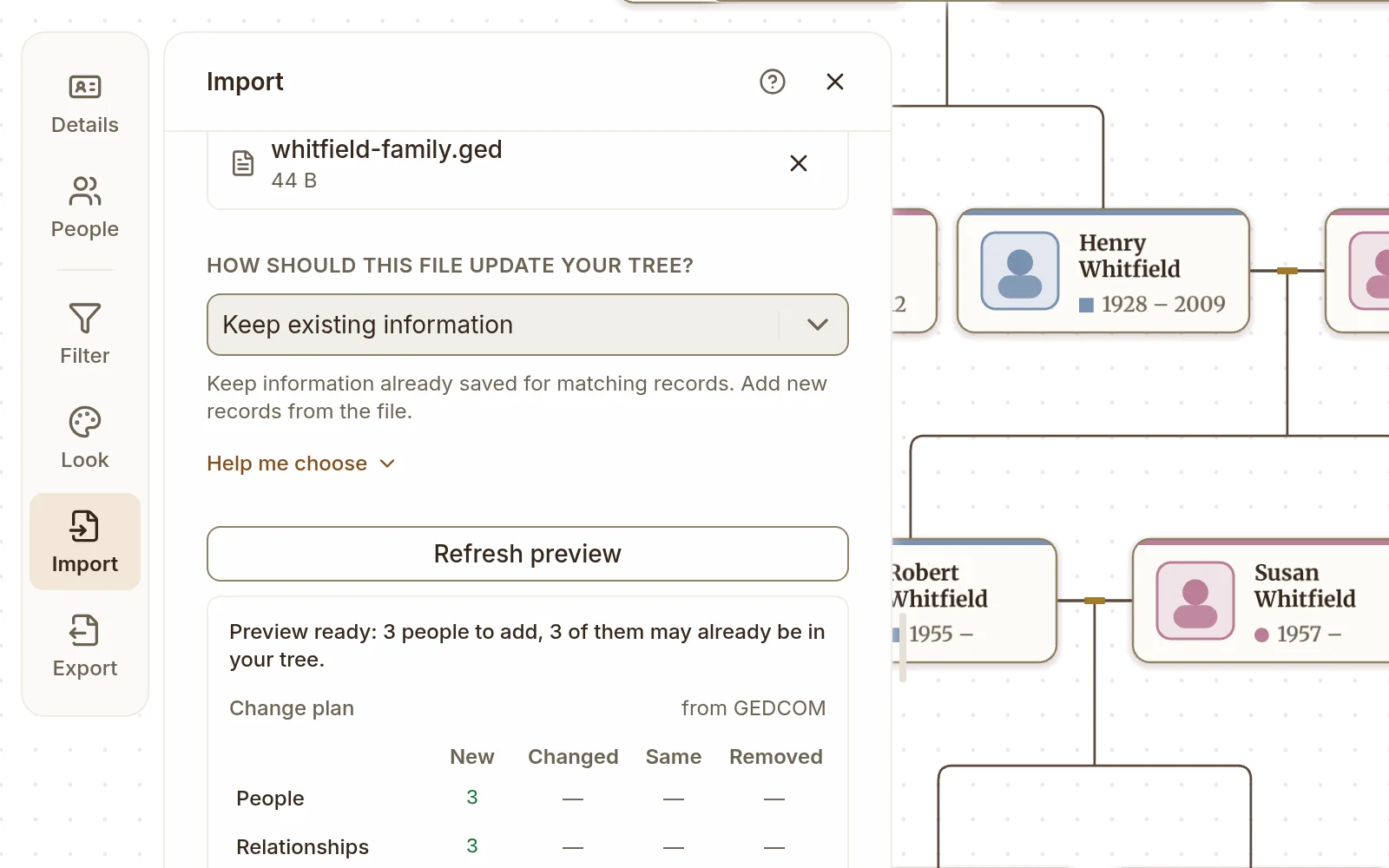
- Drag your file into the drop zone, or click to browse. A GEDCOM (
.ged,.gedcom, or a.zipholding one, as Ancestry downloads it) and a Draw My Tree backup (.zipor.json) are accepted. A.zipholding several GEDCOMs lists them, and you choose the one to import. Files up to about 25 MB work; for a backup.zip, that limit is on thetree.jsoninside it, not on the photos. - On a tree that already has people, choose how the file should update it (see below). A tree with no one in it yet takes everyone in the file, so Import asks nothing there. The file's format is read from its name; Format appears only for pasted text, and beside a file that could not be read, to read it as the other format.
- Draw My Tree previews the file as soon as it is read: how many people, relationships, events and media applying it will add, update, leave unchanged and remove under the choice you made, plus any warnings. Change the choice and the preview counts again.
- If the preview looks right, click Apply import.
A tree on a free account holds up to 500 people, and a tree with a Keepsake up to 2,000. When the file would take the tree past that, the preview says so and nothing is saved yet. See it drawn shows the whole file as a tree, Unlock this tree buys the Keepsake for the tree (or See the Family Plan, which holds up to 5,000), and Keep my current tree sets the file aside. The file waits in this browser for a week while you check out, and the Import panel opens on it again when you come back.
The records in an import either all go in or leave your tree untouched. A backup's photos and documents upload after them, one at a time.
Where the tree opens. A tree that has no home person yet gets one from the import, and the message that reports the import says who: "Henry Whitfield is the home person." GEDCOM has no standard tag for it, so Draw My Tree looks, in order, for the file's own home-person tag (_HOME or _ROOT, which Ahnenblatt and some other programs write), then for the person whose name is the file's submitter (usually the family historian who made it), then takes the first person in the file. A Draw My Tree backup carries its tree's home person and keeps it. To start from someone else, see The home person. A tree that already has a home person keeps it whatever the file says.
After a GEDCOM import, a Next steps card in the corner of the tree lists what to do next: review anything the import flagged, choose the home person (yourself, or whoever the tree is about; the charts start from them) in the card's own field, pick a look, and make your first print. While it is open, fitting the tree frames it beside the card rather than under it. Each step ticks itself off as you do it; the home person step is done once the tree has one, including one the import chose. Close it with its × and it stays closed for that tree on this device.
Undo an import. The message that reports an import offers Undo for 10 seconds, and Undo this import stays in the corner of the tree for 24 hours, after a reload and on any device or browser you open the tree on, and says when it ends: on the Next steps card when it is open, folded or not, and otherwise in a small card of its own, which its × closes on that device. Only your latest import can be undone; importing another file takes the earlier one's Undo away. Undo puts back what the import wrote over on people already in your tree (a date or place it filled in, or replaced under Use information from file), removes the relationships, events and sources it added to them, and moves the people it added, with their own relationships, events and sources, to Trash as one entry, such as "People added by the import of 28 Oct (14)". That is the tree owner's Trash, also when an editor undoes the import. Nobody who was in your tree before the import is removed. Restore in Trash brings back the people it added; to fill in your other people again, import the file again. If anyone has since edited a person the import added or filled in, in any field, changed anything else it wrote or added, added a record to a person or relationship it added, or cited one of its sources in a story, Undo says "Your tree changed after the import, so it can't be undone. Merge or delete people by hand." Merging a person the import added or filled in takes Undo this import away at once. An editor who may not choose who is hidden on public links can't undo an import that changed that; the owner can. Replace entire tree keeps the tree it replaced in Trash instead, and an import that also uploaded a backup's photos and files offers no Undo. In a tree kept as a guest, in your browser, Undo takes the tree back to how it was before the file and keeps nothing in Trash. It is the toolbar's Undo for the import too, and it lasts until you change something, undo the import another way, or leave the page.
How should this file update your tree?
This choice decides what happens to information already saved in your tree, so Import offers it once the tree has people in it. Keep existing information is selected by default.
People and other records match when their record IDs are the same. Names and dates are used only when you choose Match and merge (below). Without it, a file with different IDs can add a second copy of the same person, even if their name and dates are identical. Check the preview before applying, especially when combining files from different apps.
A GEDCOM exported from Draw My Tree carries an ID for each person, event, photo and source (a _UID line, the tag most genealogy apps read and keep), so importing it back matches each one to the record it came from, even after people were added or the file numbers them differently. A GEDCOM from another app, or one exported from Draw My Tree before October 2026, has no such IDs. When you import one into a tree that already has people, the preview says how many of the file's people have the same name as someone already in the tree, and no birth or death year more than 2 years apart from theirs. Someone with no dates in the file or in the tree counts too. Applying adds them as new people, so you would have two of each. If your account can have another tree, the preview offers Import into a new tree to keep them apart.
When you click Apply import on such a preview, Draw My Tree asks before it changes anything. Match and merge, offered first whenever it finds someone, treats a person in the file as someone already in your tree when all of these hold:
- exactly one person in your tree has the same name,
- their birth and death years are no more than 2 years apart, and neither records a different gender or suffix (such as Jr.),
- a birth or death year is recorded for both of them, and
- no one else in the file matches that same person.
A matched person keeps everything your tree already holds. The file only fills in what is blank, such as a missing date, place or note, combines their tags, and adds the events, sources and photos they don't have yet; one they already have (an event of the same kind on the same date, a source identical to one of theirs in every field, ignoring capitals, accents and spacing) is not added again, and neither is a relationship your tree already has between two matched people. Match and merge never removes anything and never replaces a value your tree has. Everyone else in the file is added. Those who could be someone in your tree but did not match exactly one person (two people of that name, two people in the file matching the same person, or no year to compare) appear afterwards in the tree's issues list, each with Review, unless more than 12 people in the tree share their name: a name that common is left out of the list, since nearly all of its pairs are different people. The question and the preview count each group before you choose: "8 people match people already in your tree and will be filled in; 2 might be in your tree already and will be added for you to check; 4 are new."
Import into a new tree (when your account can have another tree) leaves this tree as it is. Replace my tree with the file (for the tree's owner) moves everyone in your tree to Trash for 30 days, where you can restore them, and puts the file's people in their place. Add them anyway adds them as new people. The tree's issues list then shows the pairs it finds (none for a name more than 12 people share), each with Review to merge them, and it opens again on the next pair after each merge.
Merge the pairs an import added. Once Undo this import is no longer offered (24 hours have passed, or the tree changed after the import), the Next steps card offers Merge the 14 pairs this import added, and the issues list offers Merge the 14 pairs below its pairs, when at least two pairs pass the same test Match and merge uses: the same name, a birth or death year recorded on both and no more than 2 years apart, no different gender or suffix, and neither person matching anyone else in your tree. One question asks before anything changes. In each pair the person who was in your tree first stays and gains what the other adds, as a merge with Review does, and the other's own record goes to Trash for 30 days, one entry per pair. Pairs that don't pass stay in the issues list for Review, and so does a pair marked Not the same person.
An import stores every record under your tree's own IDs. A record whose ID your tree already has, as in a file exported from this tree, keeps it. Any other ID is replaced by one made from your tree and the file's ID, so importing the same file into the same tree again matches the records the first import created, while the same file imported into a different tree never collides with this one. If you script imports, the import response includes an idMap from each ID in the file to the ID stored; see the Custom JSON format reference.
Keep existing information
Keep information already saved for matching records. New people, relationships, events and other records from the file are added. Records already in your tree that are not in the file stay in your tree.
Use information from file
For matching records, replace saved information with the file's version, including removing information the file does not contain. New records are added, and records already in your tree that are not in the file stay in your tree. Use this when you want the file's version to take priority.
Fill in missing information
Keep saved information and fill in missing details from matching records in the file. For example, if a matching person has no birth date saved, add the birth date from the file and keep any death date already saved. Only absent information is filled in; a saved blank value stays blank. Person tags from both versions are combined. New records are added, and records already in your tree that are not in the file stay in your tree.
Replace entire tree
Replace all people, relationships and other information in this tree with the file's contents. Existing data not in the file is deleted, and the tree as it stood goes to Trash first, where you can restore it for 30 days. Use this when you're moving a whole tree from another app and your current Draw My Tree tree is a placeholder. After a preview, the panel says how many people and other records it deletes, and Draw My Tree asks you to confirm before it applies.
What carries over from GEDCOM
Draw My Tree reads most of the standard GEDCOM tags:
- People: names (including the common prefixes and suffixes, such as Dr. or Jr., with any other title kept in an "also known as" entry; the nickname from a
NICKline, and the surname exactly as the file marks it, so a double surname like "Fernández de Córdoba" or a surname written first stays whole), gender, birth and death dates and places, baptism and burial dates and places, religion, and notes, which become the person's story. Notes kept as separate records and pointed to from a person are read in full, not left as a reference like@N137@. A death the file records with no date or place (1 DEAT Y, GEDCOM's "known to have died") marks the person as deceased, so Leave out living people keeps them, and a GEDCOM export writes it back the same way. - Other names: extra
NAMEstructures become "also known as" entries. When a name line says more than the given name and surname, such as "Prince Arthur, Duke of Connaught", the full form is kept as an "also known as" entry and the card shows the plain name. - Life events: census, immigration, probate, occupation and residence import as events on the person, each with its date at the precision the file recorded it: a day, a month, a year, or an approximate date such as
ABT 1850orBET 1850 AND 1855. So do titles ("Title: Queen of England"), emigration, naturalization, nationality, education, graduation, retirement, military service and cremation, and church events: adult christening, confirmation, bar and bat mitzvah, and ordination. - Relationships: parent–child links, including whether each parent is biological, adoptive, foster, step or guardian. A kind the file names that Draw My Tree has no word for, such as a sealing, imports as Other, and the import's notes say so; you can change it under the link's Parentage. That is read per parent, so a child adopted by one parent and born to the other imports correctly. Family Tree Maker and Ancestry record it their own way, and that comes through too. Partner links import with every marriage, divorce and engagement across all of the couple's family records, so a couple who divorced and remarried reads as married. A family record's notes, and the photos and documents it names, go on the couple's partner link too.
- Source citations: each citation comes in as a link under Sources & documents in the details of the person it cites, including citations on their events and names, so a record you imported can be cited from the story. The link is titled with the source's title (or, when the source has none, its short title or author), and the citation's page, such as "Year: 1940; Census Place: Brooklyn", is its caption. A citation on a marriage or divorce goes on the couple's partner link, with the marriage itself. A citation repeated on one person, such as the same census page on a birth and a residence, comes in once. The preview says how many came in. A citation that is a web address on an event stays that event's source link.
- Place coordinates: a
MAPwithLATIandLONGunder a place is kept for that place, so every person and event written with the same place shares the point. An import never replaces a point someone corrected in the tree, and a GEDCOM or JSON export writes the coordinates back. A tree kept as a guest, in your browser, does not keep them. - Home person: a
_HOMEor_ROOTline pointing at a person, under the header or on its own, sets where the tree opens (see above). A GEDCOM export from Draw My Tree writes_HOMEfor the tree's home person. - Character sets: files in UTF-8 or UTF-16, and older files in ANSEL (PAF, Legacy, older Family Tree Maker), Windows or ANSI, Macintosh, IBM PC, Central European or Cyrillic encodings. Accented and non-Latin letters come through as written.
What comes across from an Ancestry export
Measured on four real family trees exported from Ancestry, 179 to 676 people each and 1,682 in all, imported into Draw My Tree and drawn:
| From the Ancestry file | Came across |
|---|---|
| People | 1,682 of 1,682, every one placed on the tree |
| Birth dates | 1,556 of 1,556 |
| Death dates | 620 of 620 |
| People with a place recorded | 998 of 1,000 |
| People with a note | 11 of 11, each note kept as that person's story |
| Parent and partner links | All but 7, in one tree, that pointed at a person missing from the export |
| Photos and documents | None; the export lists 184 of them, but the files stay on Ancestry |
| Source citations | Each, as a link on the person it cites |
Every tree drew and exported to PDF, the largest going from file to PDF in under a second. The seven links in the second-last row name people who are not in the file at all, which is how an export reads when Ancestry leaves some people out of it; there is nobody for those links to reach, so check that the people you expect are in the file before importing.
What might not carry over
GEDCOM is a loose standard and different apps use it differently. Things to expect:
- Other uncommon or app-specific events that don't map to a known type show up as warnings in the preview and are skipped.
- Photos and other media stay in your old app: a GEDCOM names its photos but does not hold them. Where the file names one under a person or a couple, directly or through a shared media record as Family Tree Maker and Ancestry write them, the import keeps it as a media item on them, with its title and caption, pointing at that file name or web address, so only photos already online show; add the others again after import, or link them by URL. A photo the file links to several people comes in once for each of them, and the preview says how many. A media record linked only from an event or a citation is left out, and the preview counts it among the warnings.
- Some source citations: a citation that names a source record missing from the file, one that says nothing about its source, and one on a family record with no couple are left out, and so is a source record nothing in the file cites. The preview counts each. Citations come in as links, which a JSON export keeps and a GEDCOM export writes back as source citations.
- Custom tags that one app invented and another doesn't understand show up as warnings during preview and are dropped.
- A parent link that loops back. If a file makes someone their own parent or ancestor (A is B's parent and B is A's, usually one link entered the wrong way round), the import leaves out the link that closes the loop, along with any record on it, and the preview names it. Add it back the right way round in the person's details if it belongs.
- Rare ANSEL accents. A letter with an accent that has no single-character form in Unicode can come through as a replacement character. Common accented letters are unaffected.
Check the warnings in the preview before you apply.
Importing the Draw My Tree JSON format
A Draw My Tree backup is a .zip holding tree.json, which carries everything the tree holds (events, media, stories and the home person), and a media folder with every photo, video and document that was uploaded. Import the .zip as it downloaded. After Apply import brings in the records, each file uploads to the person it belongs to, and each person gets back the picture chosen for them, unless they already have one in this tree. The message that reports the import says how many files came back.
A free account restores one portrait per person; other photos, videos and documents need the Family Plan. Files over your storage limit wait too, and so does a file Draw My Tree doesn't store (a format other than JPEG, PNG, WebP, GIF, MP4, WebM, MOV or PDF, or a file over 25 MB, 250 MB for a video). Before you select Apply import, the preview counts the files that will upload in its Media row and says how many won't, and why. After the import, it lists every file it could not restore and why, and the files stay in the .zip to add later from each person's details.
Download all my data saves every tree you own in one .zip, a folder per tree. A .zip holding one tree imports as it is. For one holding several, unzip it, zip the folder of the tree you want, and import that.
A tree.json on its own imports the records without the uploaded files, and the preview lists each file it leaves out. To script against the data, see the Custom JSON format reference for the schema.
What to read next
- Exporting your data: get your tree back out in any of seven formats.
- Building your tree: clean up and extend what you just imported.
Last updated October 31, 2026 by Prescott Bros LLC, the makers of Draw My Tree.